
Change your name, email address and photo
Open your settings and choose Profile.
Your name#
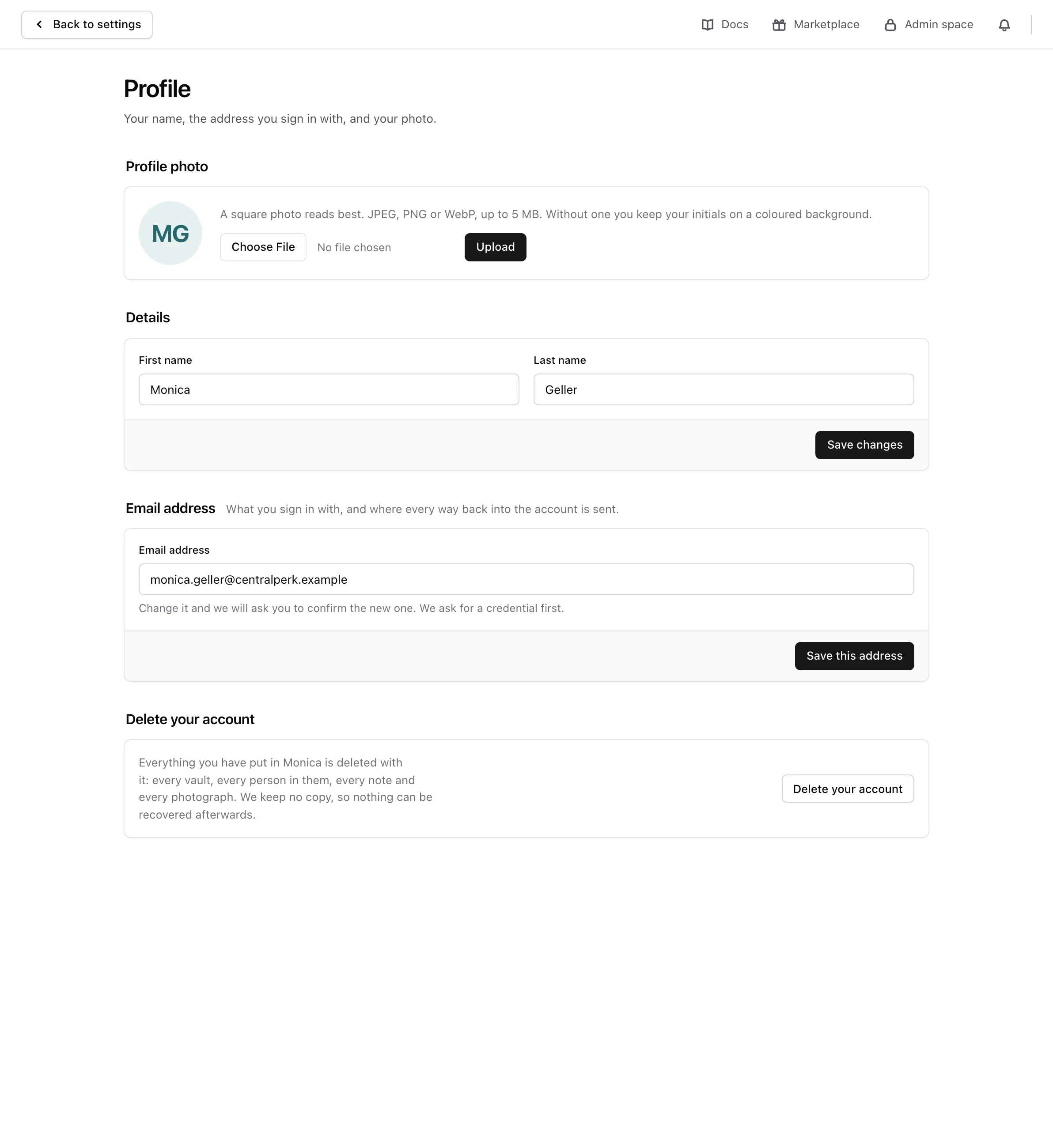
Under Details, change First name or Last name, and choose Save changes. Monica says Your details are saved. Your name appears wherever Monica shows who did something, such as your logs.
Your photo#
Under Profile photo, choose a file and Upload. Monica takes JPEG, PNG and WebP images up to 5 MB, and a square photo reads best. Without one, Monica shows your initials. To take it off, choose Remove the photo, then confirm.
Your email address#
The address you sign in with is also where every way back into the account is sent: sign in links, password resets and warnings. Change it with care.
-
Type the new address
Under Email address, type the new one, and choose Save this address. Monica asks you to confirm it is you first.
-
Confirm it
Monica sends an email to the new address, with the subject Confirm your email address. Open it and choose Confirm my email address. The link works for an hour.
Until you confirm the new address, Monica shows the confirmation screen instead of your account. If the email did not arrive, choose Send the email again there.
The email reads as if you had just signed up, because it is the same one Monica sends to new accounts. You can follow it all the same.