
Find people in a vault
Find somebody quickly, and set up the list of people the way you like it.
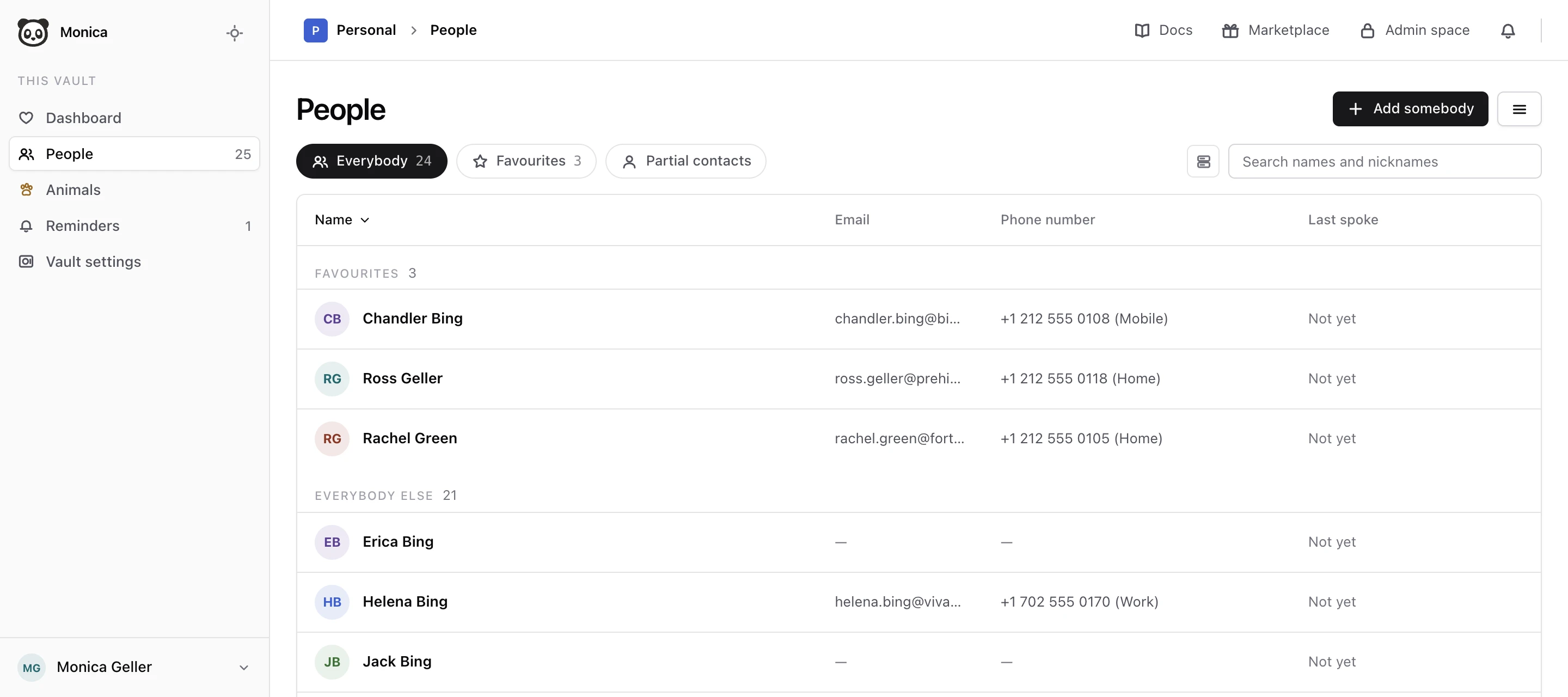
The list lives in each vault. In the vault’s sidebar, choose People. The number next to it counts the people in the vault.
Search by name#
Type in Search names and nicknames, then press Enter. A few letters are enough: chan finds Chandler Bing, and so does Chan Chan Man, his nickname.
Search looks at names and nicknames only, in the vault you are in. It does not look inside sections, so it will not find somebody by their email address or their city, and it does not search your other vaults.
Filter the list#
The buttons above the list choose who it shows:
- Everybody shows every full contact in the vault. Favourites come first, under their own heading, then Everybody else.
- Favourites shows only the people you marked as favourites.
- Partial contacts shows the people written down with a name only. They appear nowhere else in the list. Add a person explains partial contacts.
Search works inside the filter you chose. To find a partial contact by name, choose Partial contacts first.
Sort the list#
Choose a column heading to sort by it: Name, Nickname, Last spoke or Added, when those columns are shown. Choose the same heading again to reverse the order. The heading you sorted by is marked with an arrow.
Monica remembers your filter and your sort, and opens the list the same way next time.
Choose the columns#
The list shows the name and a few details next to it. By default these are Email, Phone number and Last spoke. You can choose other details, reorder them, and rename their headings.
-
Open the column editor
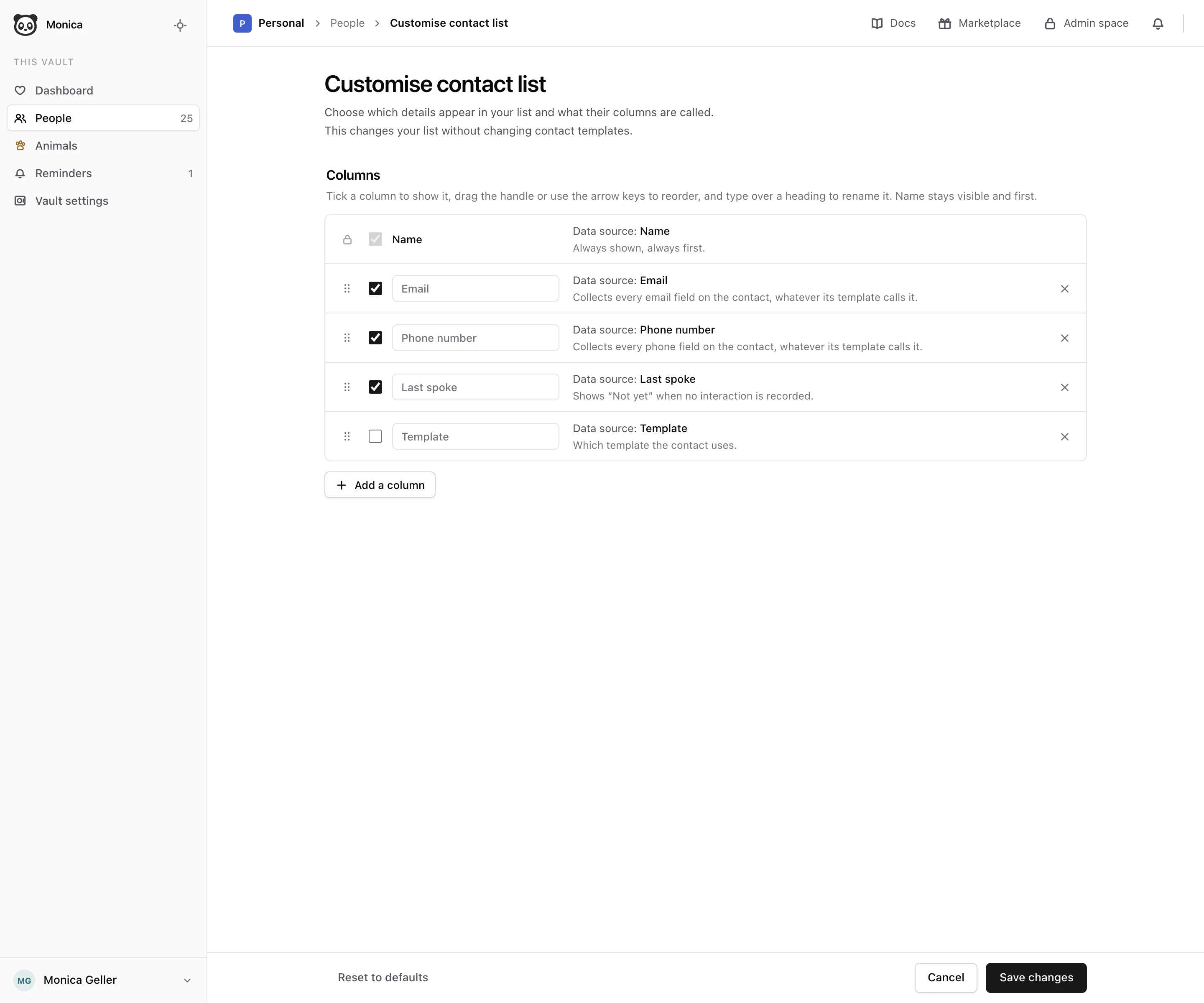
Next to the search box, choose Customise view. The Customise contact list screen opens.
-
Pick the columns
Tick a column to show it, and untick it to hide it. Choose Add a column to add another detail, such as a birthday, the date somebody was added, or any field from your templates.
-
Arrange them
Drag a column by its handle to move it, or focus the handle and use the arrow keys. Type over a heading to rename it. Name always stays visible and first.
-
Save
Choose Save changes.
The columns belong to the vault, so each vault can show different details. Changing them never changes your templates or what is written on anybody’s page. To go back to the columns Monica started with, choose Reset to defaults.
Long lists#
The list shows people a page at a time. At the bottom, choose Load more to see the next ones. When everybody is showing, Monica says it is the end of the list.
Next steps#
- Add a person who is not in the list yet.
- Change what you know about somebody you found.