
Share a contact with a link
A sharing link is a private address to one contact’s page. Whoever opens it needs no account, can change nothing, and sees only what you chose to show. You can change what it shows, or stop it, at any time.
Say Rachel is organising Joey’s birthday and needs his address and phone number. You make her a link to Joey’s page that shows only his contact details, works for seven days, and asks for a password.
Only contacts can be shared this way. There is no link to a whole vault.
Make the link#
-
Open the sharing links
On Joey’s page, open the menu next to Edit contact and choose Share. The screen lists the links you already made for him.
-
Start a new link
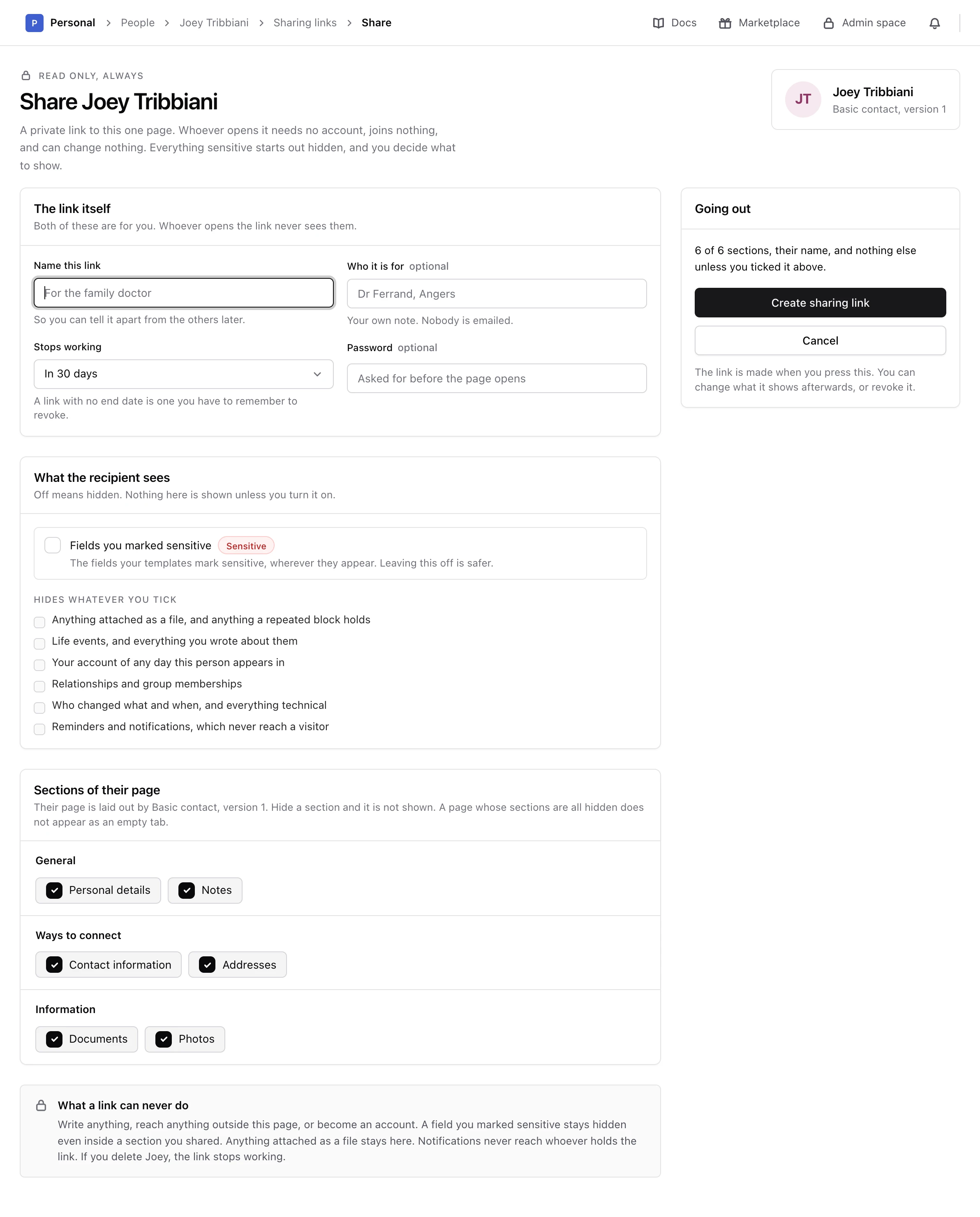
Choose Create sharing link, or Create your first sharing link when there is none yet.
-
Name it
In Name this link, type
For Rachel, the birthday party, so you can tell it apart from the others later. Who it is for is a note for you. Nobody is emailed. -
Choose when it stops
In Stops working, choose In 7 days. The other choices are In 30 days, In 3 months and Never. A link that never stops is one you have to remember to revoke.
-
Add a password
Type a password in Password. Whoever opens the link is asked for it before the page opens. Leave it empty for a link that anybody holding the address can open.
-
Choose what it shows
Under Sections of their page, every section starts ticked. Untick the ones Rachel does not need, and keep Contact information and Addresses. Under What the recipient sees, leave Fields you marked sensitive off unless she needs them. The summary under Going out counts the sections the link will show.
-
Create it
Choose Create sharing link.
Monica says The link is live and shows the address.
Warning
Copy the address now, with Copy the link. This is the only time Monica can show it: it keeps only a scrambled version, so a lost address cannot be recovered. If you did not copy it, revoke the link and make another.
Send it#
Monica does not send anything. Paste the address into the message you already use with Rachel. If you set a password, send it to her separately, for example by phone, so that one intercepted message is not enough to open the page.
To see the page as Rachel will see it, choose Open it as a visitor.
See who opened it#
Each link keeps a list of its visits, with the date, the time and roughly where each came from. Wrong passwords appear there too. Because there is no account behind the link, nothing else about the visitor is recorded.
Change what a link shows#
On the link, choose Change or Change what For Rachel, the birthday party shows, adjust the sections, the expiry or the password, then choose Save what it shows. Monica says The link is changed. The address stays the same, and Rachel sees the change the next time she opens a page.
To remove the password, tick Stop asking for a password. To keep the current one, leave Password empty.
Revoke a link#
Warning
Revoking a link takes effect straight away and cannot be undone. If the same person needs access again, make a new link.
On the link, choose Revoke this link. Monica asks Revoke “For Rachel, the birthday party”? Choose Revoke the link to confirm. Monica says The link is revoked.
The link stays on the list, marked Revoked, with the visits it had, so you keep the history of who saw the page.
A link also stops working on its own when it reaches its end date, when you delete the contact, or when you delete the vault the contact is in.
Next steps#
- Read What a sharing link shows before you share anything sensitive.
- Export the contact as a file instead, for a one time copy.