
Share a template as a file
Export a template or a single section as a file, and import it into another account, on monicahq.com or on any other instance. Use it to move a template you built to a new account, to give it to one person, or to keep a copy of a structure that took you a while to get right.
What a file holds#
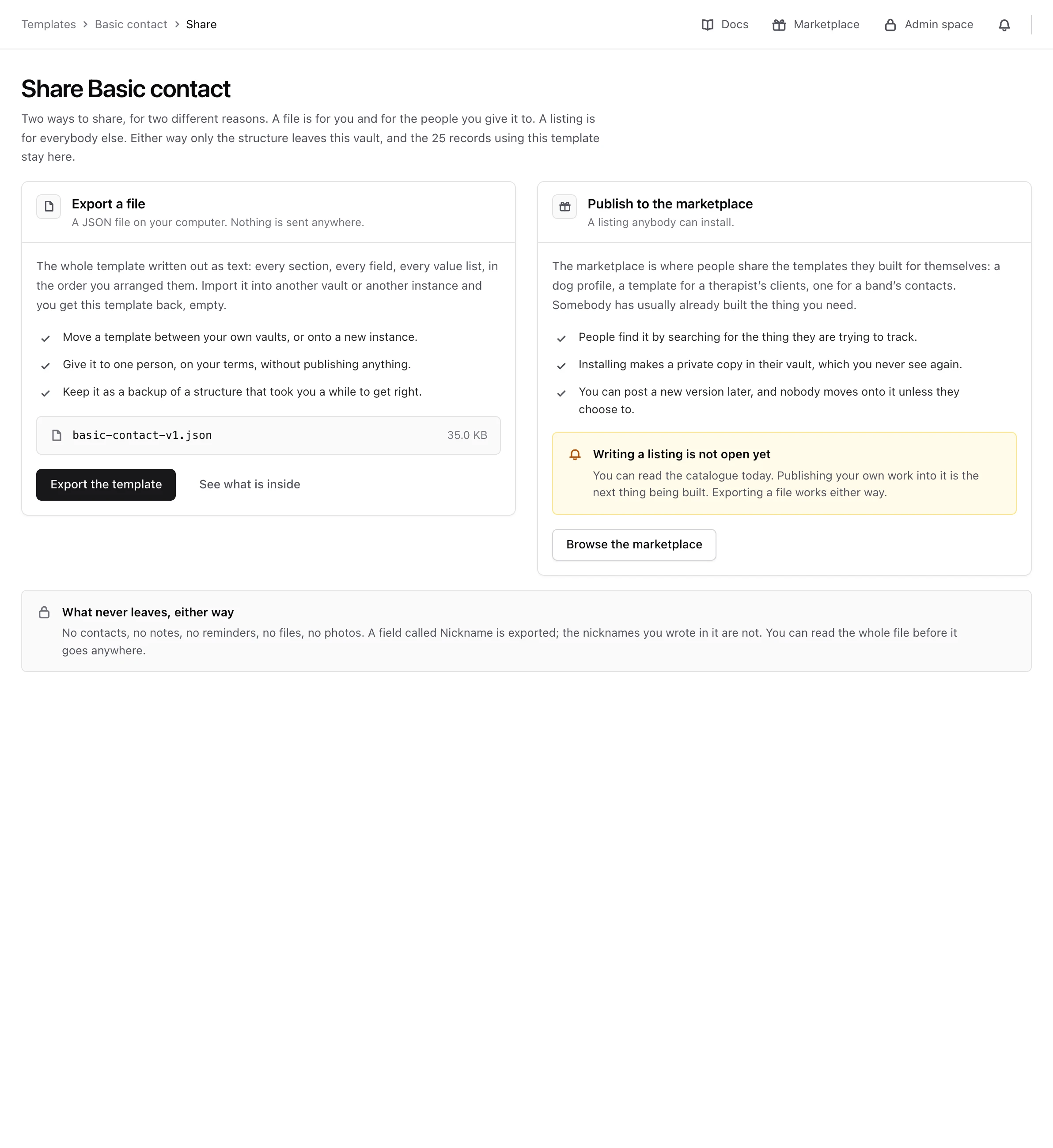
A file holds the structure only: every page, section and field, in the order you arranged them, and the value lists the fields choose from. It never holds contacts, notes, reminders, files or photos. A field called Nickname is exported; the nicknames you wrote in it are not.
Note
Labels do travel. If you named a field after somebody, rename it before the file leaves.
Export a template#
Only a template with a published version can be exported.
-
Open the share screen
Open the template in your settings, open the menu of Create a new version, and choose Share on marketplace. The screen Share Friends, with the name of your template, offers two ways to share.
-
Open the file
In Export a file, choose See what is inside to read the file first, or Export the template to go straight to it.
-
Keep it
Choose Download the file to save it, or Copy to the clipboard.
The file is a JSON file named after the template and its version, such as friends-v1.json.
Export one section#
A published section can travel on its own, to be added to a template somebody already has. On the section in the builder, choose Share this section, then export it the same way.
Import a template#
-
Open the import screen
In Templates, choose Import a file.
-
Paste the file
Open the
.jsonfile in a text editor, copy all of it, and paste it into The file, outer braces included.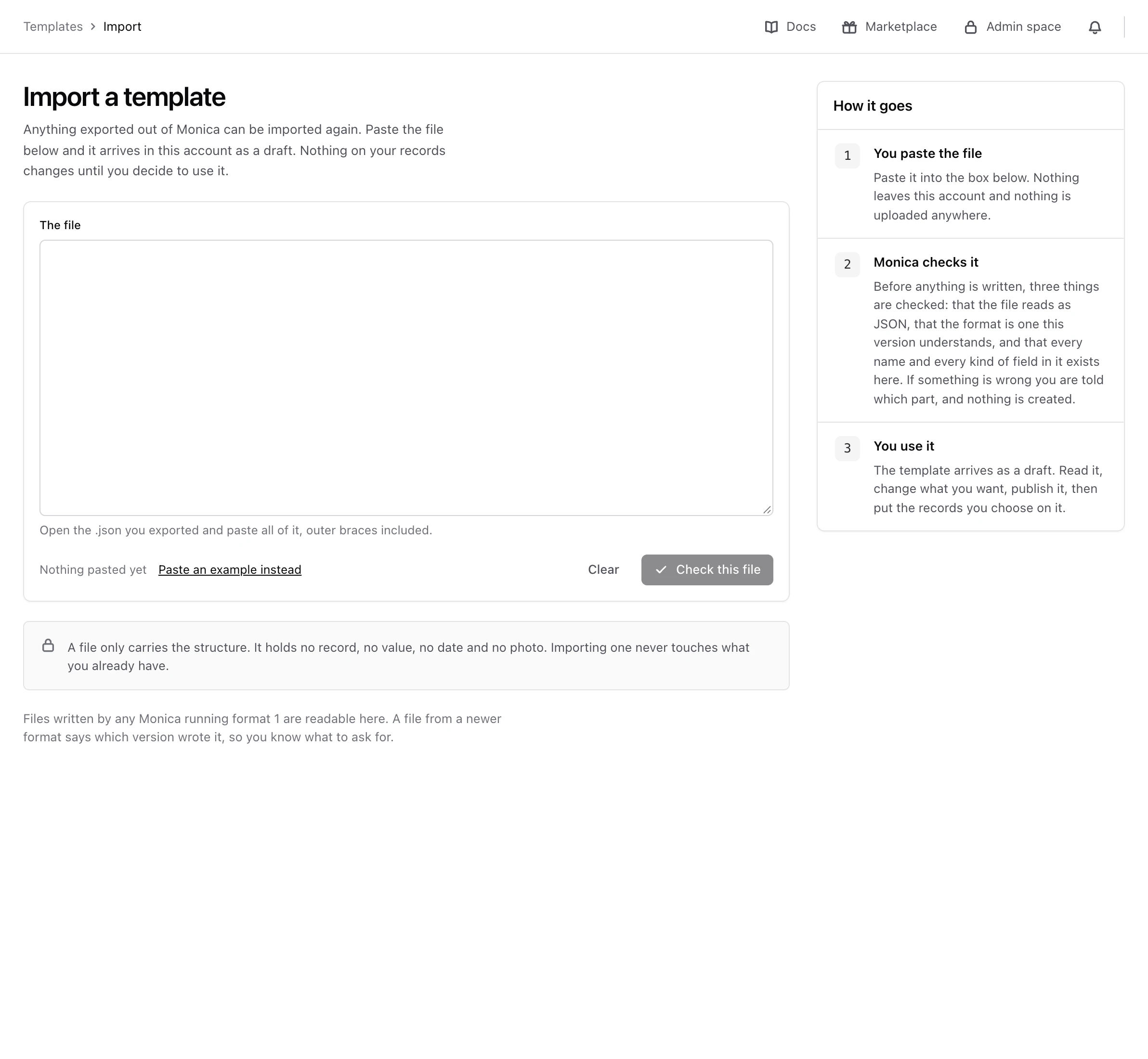
-
Check it
Choose Check this file. Monica reads it without importing anything, and says either This file can be imported, with the name it will take, its structure and the value lists it brings, or This file cannot be imported, with the reason.
-
Import it
Choose Import it as a draft.
Monica says The template is imported. It arrives as a draft, and nothing is offered to a contact until you publish it, as Change a template shows. Importing never touches a contact you already have.
When the file meets what you already have#
- The name is kept as it is, even if you already have a template with that name. The slug gets a number added if it is taken, such as
friends-2. - A value list you already have, under the same key, is reused rather than created twice.
- A kind of profile you already have is reused. A missing one is created.
- Sections are always created new.
Import one section#
A section is imported into the page of a draft. Open the draft in the builder, go to the page it belongs on, and choose Import a section. The rest works like a template: paste, check, then Put it on this page. It lands at the end of the page.
Next steps#
- Read The template marketplace about sharing with everybody.