
Create an API key
An API key lets a script, an AI assistant or the contacts app on your phone act as you, with exactly the access you have. Connect Monica to other tools explains which of them you need.
Create a key#
-
Open your security settings
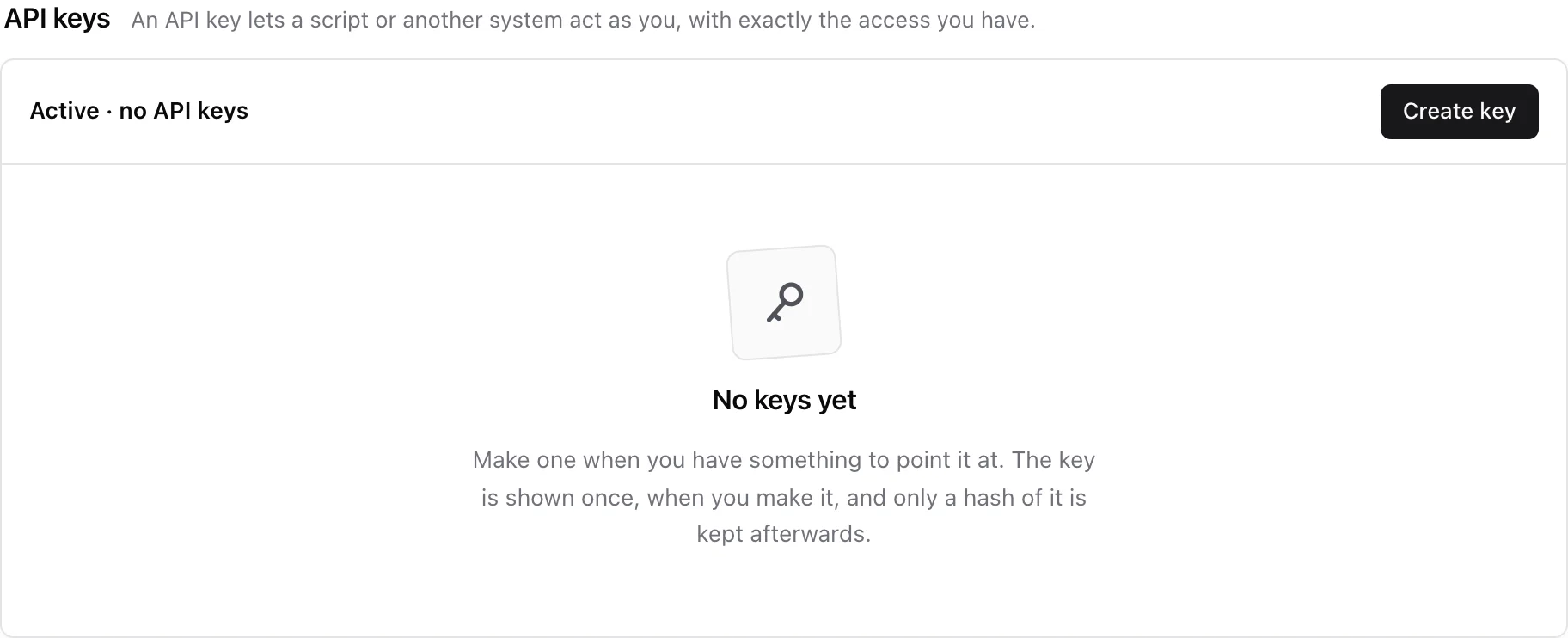
Open your settings, choose Security and access, and under API keys choose Create key.
-
Name it
In Name, type something you will recognise in a year, such as
Phone address bookor the name of the script. -
Say what will use it
In What will use this key, choose Personal script or AI Assistant. This only tells your keys apart on the list and in your logs. It changes nothing about what the key reaches.
-
Decide about sensitive fields
Leave Let this key read the values of fields marked sensitive off unless a device needs them. An address book on a phone can be read by the other applications on it.
-
Create it
Choose Create key. Monica asks you to confirm it is you first.
Warning
Copy the key now, with Copy to the clipboard. This is the only time Monica can show it: it keeps only a scrambled version. If you lose it, revoke it and create another.
A key never expires on its own. The list shows when each key was created and last used.
Use it on your phone#
The Contacts and calendar applications section, under the keys, shows the address. In the contacts app of your phone or computer, use that address, your email address, and an API key as the password. Your account password does not work there. CardDAV and CalDAV walks through each device.
For scripts, the API reference explains how to send the key.
Revoke a key#
Choose Revoke on the key, then confirm. Anything still using it stops working straight away, and the key cannot be recovered.