
Choose a new password when you forgot it
Ask Monica for a link by email, and use it to choose a new password.
If you only want to get in, a link that signs you in is faster: see Sign in with a link sent by email.
-
Ask for a link
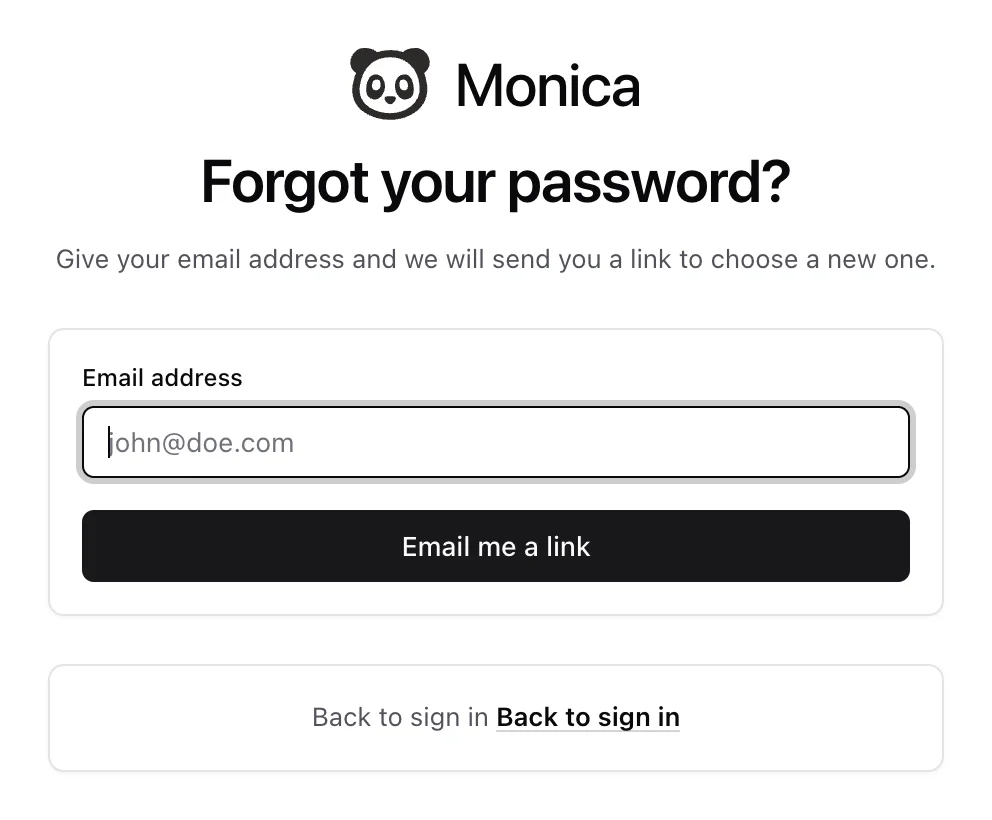
On the sign in screen, choose Forgot your password? Type your Email address, then choose Email me a link.
-
Open the email
Monica says a link is on its way if the address has an account. Open the email with the subject Choose a new password for Monica, and choose Choose a new password. The link works for an hour.
-
Choose the new password
Type it in New password and again in Confirm password. It needs at least 8 characters. Choose Change my password.
-
Sign in
Monica says Your password is changed. You can sign in with it now. Sign in with the new password.
Monica then emails you with the subject Your Monica password was changed, so you would notice if somebody else did it.
What to know#
- The message is the same for everybody. Monica confirms that a link is on its way whether or not the address has an account, so nobody can use this screen to find out who is registered.
- One link a minute. Asking again straight away sends nothing new. Wait a minute.
- An old link stops working. If you see That link no longer works. Ask for another one., the hour has passed or you already used it.
- You stay signed in elsewhere. Changing your password does not sign you out on your other devices.
If no email arrives, look in your spam folder, then ask again.