
Record something that happened
A life event is something that happened on a date, often with other people: a wedding, a move, a new job, a trip. You record it once, and it appears on the timeline of everybody who took part.
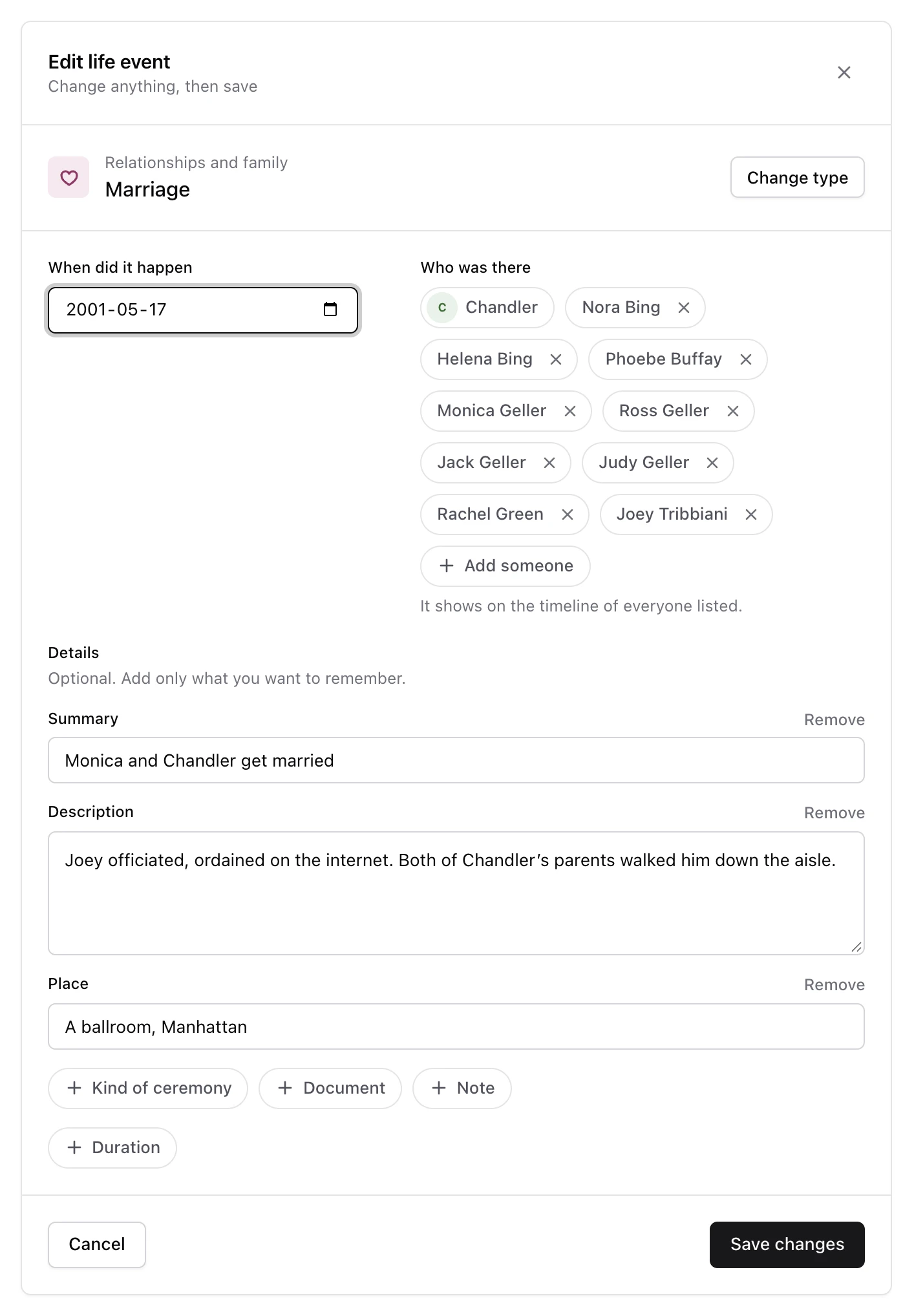
Say Monica and Chandler married on 17 May 2001, in a ballroom in Manhattan, with all their friends there. You add the wedding from Chandler’s page, list the guests, and it shows on each of their pages. How the timeline works explains how that works.
Add a life event#
Adding a life event takes two steps: choosing what happened, then filling in the details.
-
Open the panel
On Chandler’s page, on the Overview tab, choose Add a life event above the Timeline.
-
Choose what happened
The panel says Step 1 of 2 · Choose what happened. Pick a category, then Marriage. To find a type faster, type in Search every type.
-
Enter the date
The panel moves to Step 2 of 2 · Fill in the details. In When did it happen, enter 17 May 2001.
-
Say who was there
Under Who was there, Chandler is already listed, because the event is on his page. Choose Add someone, search for Monica Geller, and pick her. Add the others the same way.
-
Add the details you want to keep
Under Details, fill in Summary, the line the timeline shows, and any other piece you want: Description, Place, Duration, and the fields of the type, such as Kind of ceremony for a marriage. Choose a piece to add it, and Remove to take it away. Everything here is optional.
-
Add it to the timeline
Choose Add to the timeline.
Monica confirms that the marriage is on the timeline of everybody you listed, and marks the new entry Just added.
Change a life event#
On the timeline, choose Edit on the entry. The panel opens with everything you wrote, and Save changes writes your changes to every timeline the event is on. The entry is then marked Edited.
To pick another type, choose Change type. The date and the people stay as they are. The fields that belong to the old type may not:
Warning
If the new type does not ask for a field you filled in, what you wrote there is dropped when you save.
Delete a life event#
On the timeline, choose Delete on the entry. Monica asks Delete this life event? and says whose timelines it is taken from. Choose Delete life event to confirm.
The event disappears from the timeline of everybody in it, not only from the page you are on. The people themselves are not affected.
Right after the deletion, the timeline shows a notice with Undo. Choose it to bring the event back, with its people and its details. The notice lasts until you leave or reload the page, so undo straight away if you deleted the wrong one.
When there is no type to choose#
Monica prepares a list of life event types for you when you sign up, grouped in categories. You can add your own types, add fields to them, or switch some off, from Manage life event types at the bottom of the first step. If the panel says There is no life event type to choose from yet, choose Add one in the settings.
Next steps#
- Read How the timeline works to understand what the timeline shows.
- Link the people who were there, if they are not linked yet.