
Add a photo to a contact
Give a contact a photo, so you recognise them at a glance in the list of people and on their page. Without one, Monica draws their initials on a coloured background.
Upload a photo#
-
Open Edit contact
On the contact’s page, choose Edit contact.
-
Choose the photo
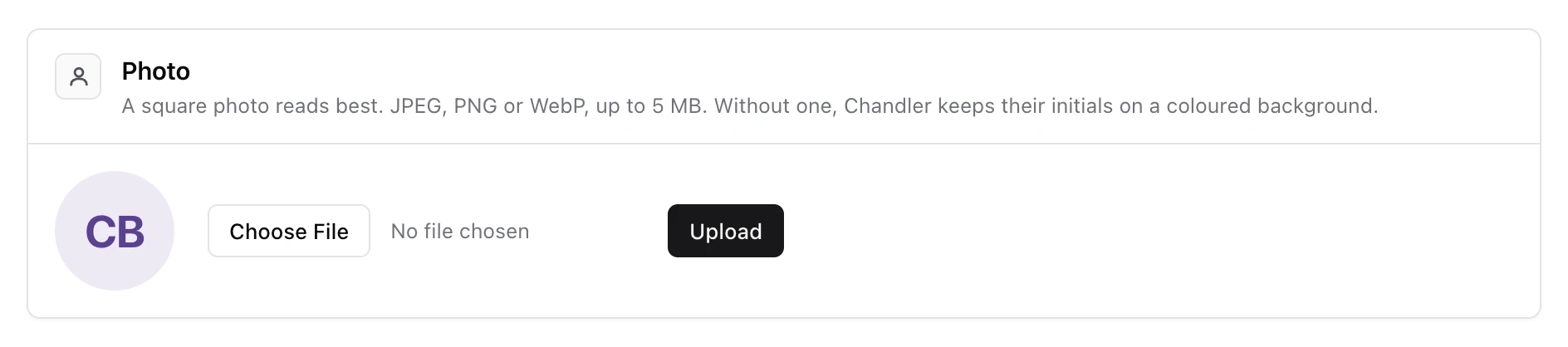
In Photo, choose the file on your device. Monica accepts JPEG, PNG and WebP images up to 5 MB. A square photo reads best, because Monica shows it in a circle.
-
Upload it
Choose Upload.
Monica says The photo is saved, and shows it wherever the contact appears. To change it, upload another one: the new photo replaces the old.
Remove a photo#
In Photo, choose Remove the photo, then confirm. The contact is drawn with their initials again.
Photos and storage#
On monicahq.com, a photo counts toward the storage your account is allowed. If an upload would take the account past it, Monica refuses the photo and says This file would take the account past the storage it is allowed. On an instance somebody runs on their own server, there is no storage limit.
Your own photo, the one shown next to your name, is set in your account settings, not here.
Next steps#
- Find people in a vault, where photos help you spot somebody.