
Write notes
A note is free text kept in a folder. Use one for anything you would write on a piece of paper: where the water shutoff is, the plan for a weekend away, what to bring to the next game night.
Write a note#
-
Start the note
Choose New note in the + menu of the folder column, or Write a first note if Knowledge is still empty. The note opens ready to edit.
-
Give it a title and a folder
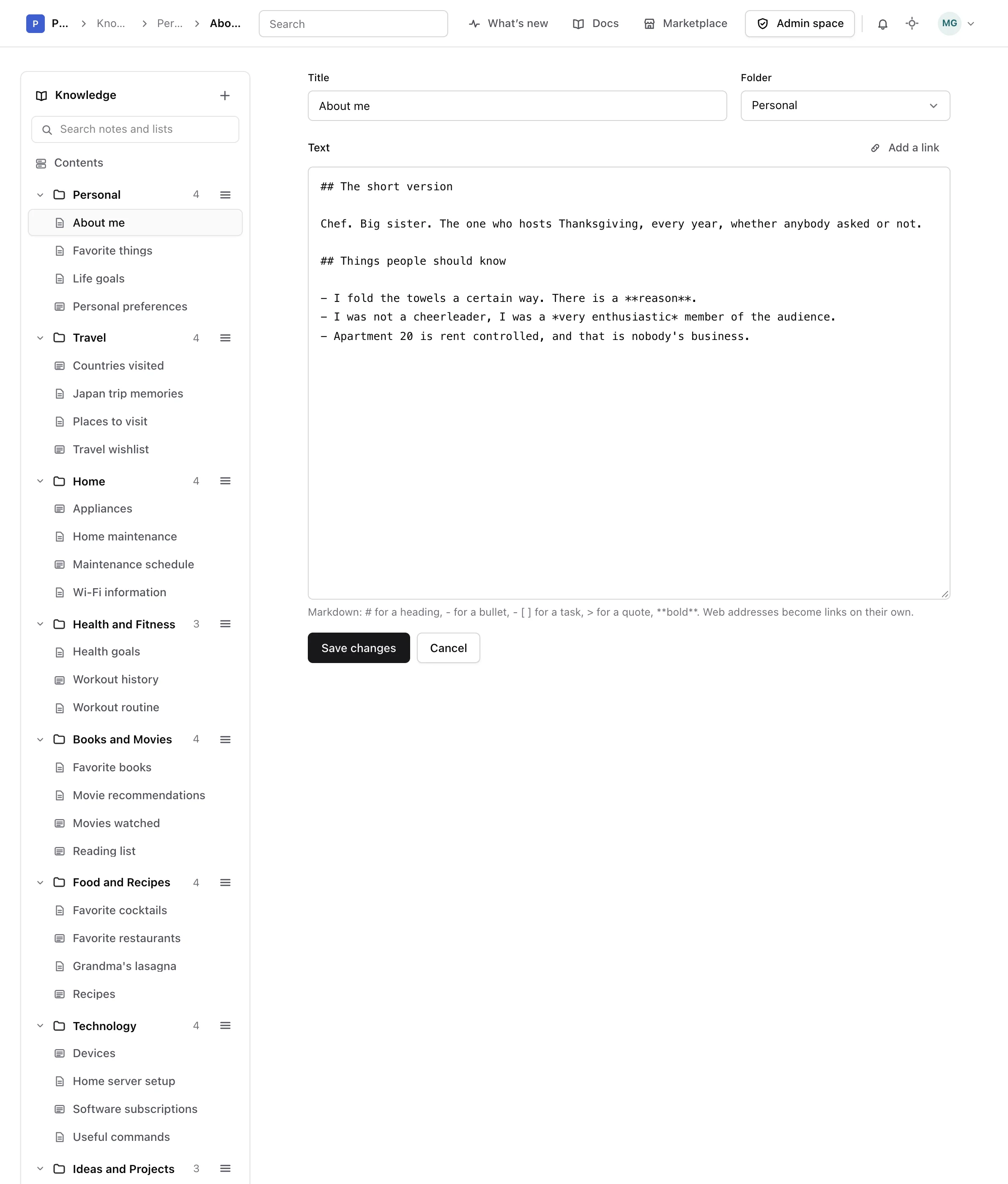
Type a title, and pick the folder it belongs in.
-
Write the text
Type your text in Text, then click Save changes. The note shows as you will read it from now on.
A note you leave without a title is called Untitled note. You can rename it at any time by clicking its title.
Format the text#
The text uses Markdown, a few simple marks that become formatting when you save:
| Write | To get |
|---|---|
## Packing |
a heading |
- Passports |
a bullet |
- [ ] Book the hotel |
a task to tick |
> Ask Ross first |
a quote |
**before Friday** |
bold text |
A web address you type, such as https://www.example.com, becomes a link on its own. To link words instead, select them and click Add a link (or press Ctrl K, or Command K on a Mac), type the address, then click Add link. Links open in a new tab.
Tick tasks#
While you read a note, tick a task's box to mark it done, and untick it to bring it back. The note saves straight away, so you can use a note as a checklist without opening it to edit.
Edit or delete a note#
Click Edit to change the title, the folder or the text. Moving a note to another folder changes nothing else about it.
Warning
Clicking Delete on a note, then confirming, deletes it for good. It cannot be recovered.
Next, start a list for things that fit in a table.