
Change the choices a list offers
A value list holds the choices a field offers. The Category of a contact picks from Contact categories, a phone number’s label from Phone labels, and so on. Rename the values to the words you actually use, add your own, and put them in the order you want to see them.
Open your settings, and under Personalisation choose Value lists.
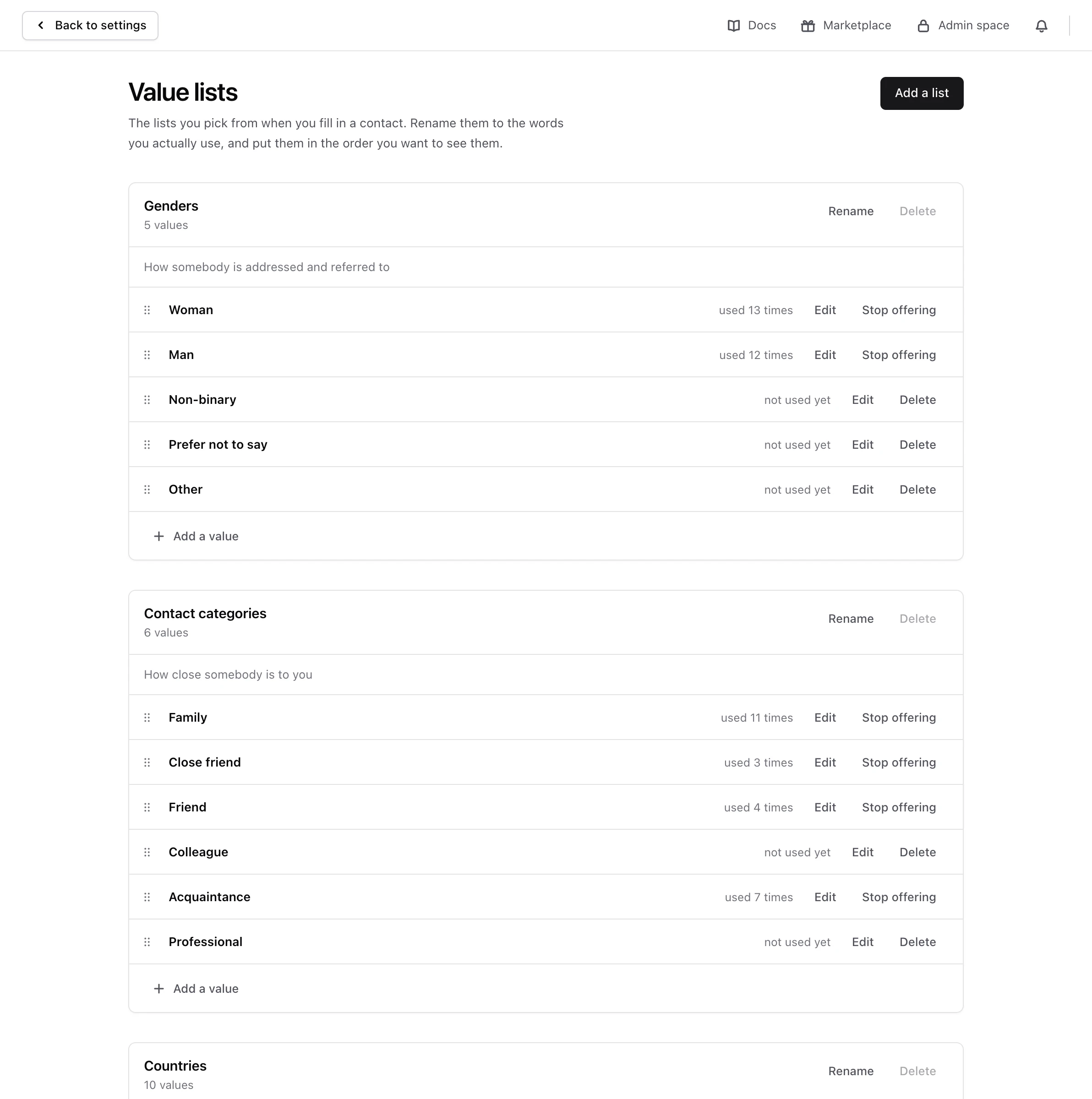
Add a value#
Say you want a category for the people you know from Central Perk. In Contact categories, choose Add a value, type Central Perk regulars in Name of the value, and choose Add. Monica says The value is added, at the end of the list. Drag it to where you want it: the values are offered in the order you put them in.
Rename a value#
Choose Edit on the value, and type the new name. Everything that offers it, and every contact that already has it, shows the new name straight away.
Retire a value#
What you can do depends on whether anything uses the value. Each value says not used yet, used once, or how many times it is used.
- A value nothing uses can be deleted. Choose Delete, then Delete the value.
- A value in use cannot be deleted, so nothing already written loses its answer. Choose Stop offering instead. It stops being offered in new answers, and every contact that already has it keeps it. Offer again brings it back where it was.
Lists of your own#
Choose Add a list to make a list of your own, such as how you met somebody. A field in a template can then pick its choices from it, as Change a template shows.
A list you made can be renamed or deleted, and deleting it deletes its values. Before you delete one, check that no field in your templates picks from it: Monica does not check this for you. The lists that came with your account cannot be deleted, because Monica itself reads from them.
Next steps#
- Add a field that picks from your list.