
Record who has a possession
Things leave your hands without changing owner. A camera goes to a friend for a holiday, a painting goes to a museum for an exhibition, a drill comes over from the neighbour for a weekend. The Loans section of one of your possessions answers two questions: who has it now, and when is it due back?
Ross lent his keyboard to Phoebe on 2 May, for a gig, and she promised it back by the 10th. That is one loan: lent to Phoebe, active, due back on 10 May.
Open a possession and choose Loans in the list of its sections. The number beside it says how many loans it has.
Loans and ownership#
A loan never changes who owns the possession, so it adds nothing to its transactions. It records a person, a direction and some days.
- Lent out means the possession left your hands. Borrowed in means it came into them from somebody else.
- A loan is Planned, Active or Returned. A possession has at most one active loan, since it cannot be in two places at once.
- The person is one of your contacts in the same vault, so the loan also appears on their page.
See who has it#
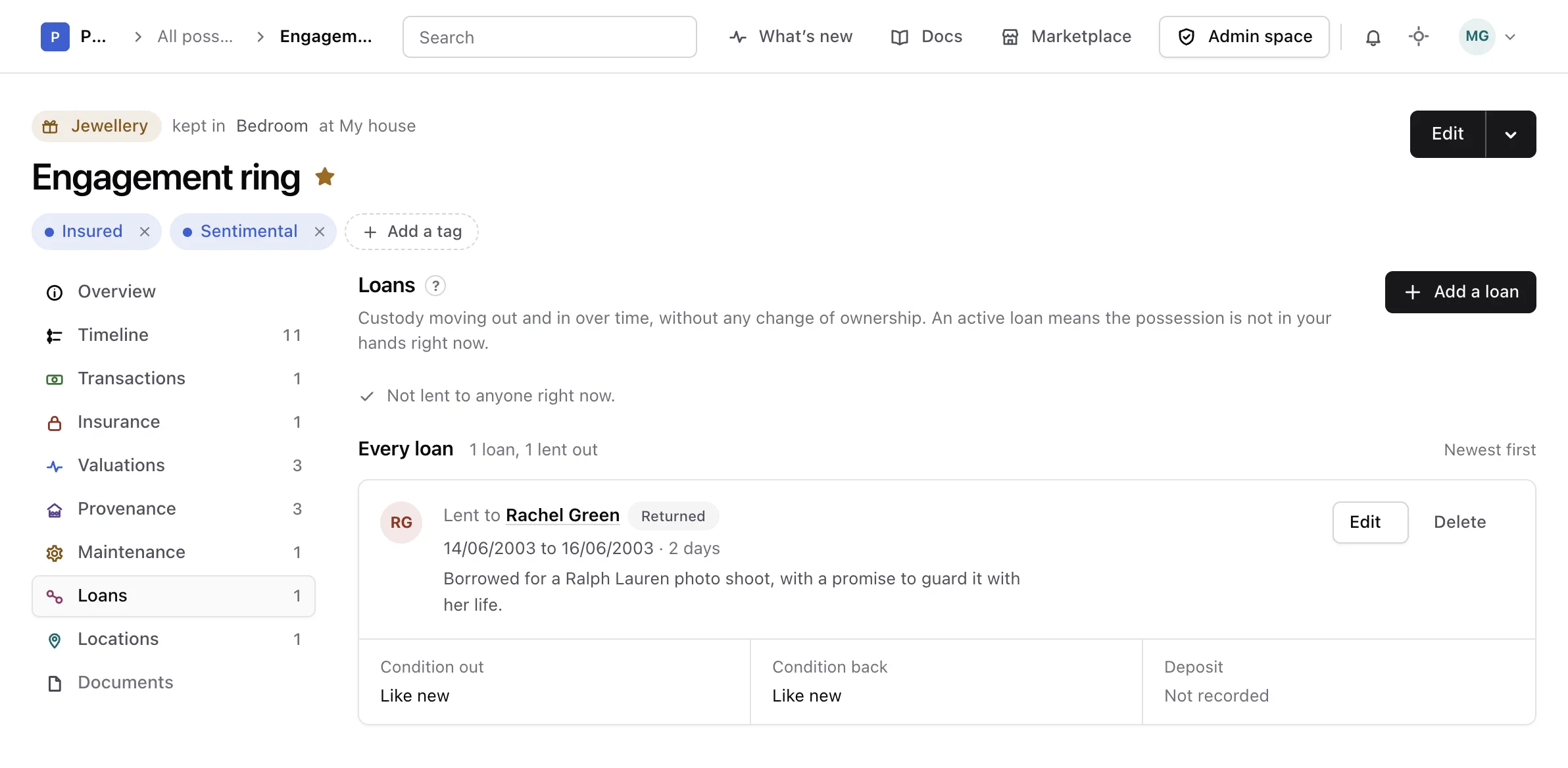
When a loan is active, a panel at the top of the section says who has had the possession since when, and when it is due back. Once the due day has passed, it says how many days ago that was. Without an active loan, the section says it is not lent to anyone right now.
Every loan follows, the newest first, with how many loans there are and how many of them were lent out. Each loan gives the person, a status, its period, its purpose, and the condition it left in, the condition it came back in or its due day, and any deposit. The status reads With them now for an active loan, Overdue once its due day has passed, Planned or Returned.
Lend it to somebody#
-
Open the form
In Loans, choose Add a loan.
-
Say which way it goes
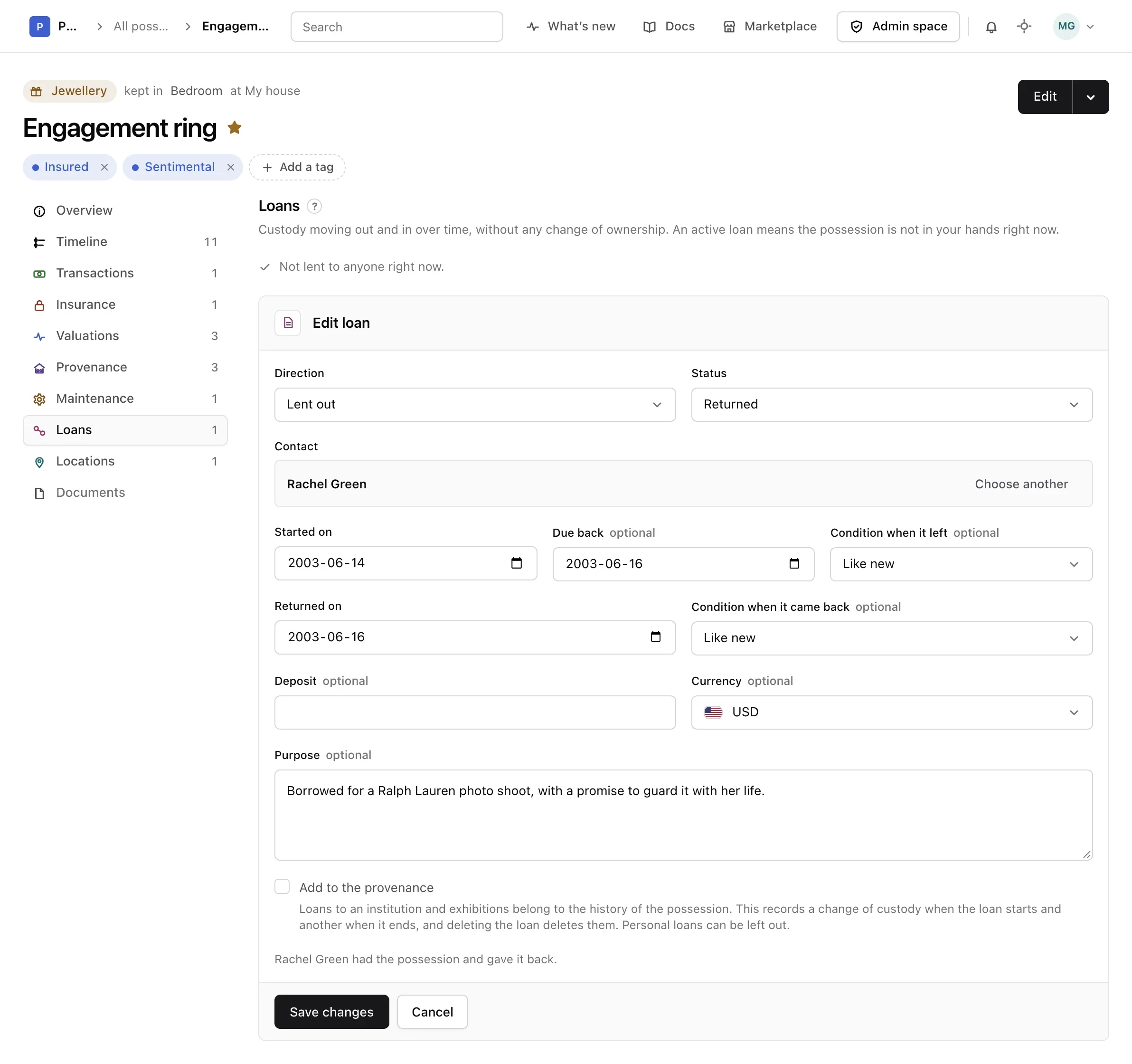
Choose Lent out or Borrowed in under Direction, and the Status. A new loan starts as active.
-
Choose the person
Type a name under Contact and pick the person from your contacts in this vault. When nobody matches, choose Create to write a new contact down with the loan. Only a first name is needed; the rest of their page can be filled in later.
-
Add the details
Started on starts on today. Add the day it is Due back, the condition it left in, a deposit and its currency, and a Purpose if they are worth remembering. A line under the form sums up what the loan records.
-
Save the loan
Choose Add loan.
A loan is refused when another loan of the same possession is already active. Mark that one as returned first.
Mark it as returned#
When the possession comes back, choose Mark as returned on the panel or on the loan. The form opens with the status set to Returned and Returned on set to today. Add the condition it came back in, then choose Save changes.
Keep it in the provenance#
Some loans belong to the history of a possession: a painting shown in an exhibition, a watch photographed for a book. Tick Add to the provenance and the loan records a change of custody in the provenance when it starts and another when it ends. Editing the loan keeps both in step, and unticking the box removes them. Personal loans can be left out.
Edit or delete a loan#
Choose Edit on a loan to change any of it. Choose Delete on a loan recorded by mistake.
Warning
Deleting a loan cannot be undone. Its provenance events are deleted with it.
Choose Delete again to confirm, or Keep it to leave it as it was. The person stays in your contacts. Deleting a possession deletes its loans with it.
On the page of the person#
Somebody who has had or lent one of your possessions shows a Loans panel on their page, each loan leading to the possession. Deleting that contact keeps the loan, which then names a deleted contact. Merging two contacts brings their loans together, and undoing the merge gives them back.
From the API or an assistant#
Loans can also be listed, recorded, changed and deleted through the API reference and by an assistant connected as the MCP guide explains.