
Describe the things you own
A possession type is a kind of thing you own, such as Books, Cars or Musical instruments. It says which details a thing of that kind carries: an author, a registration number, a tuning. Types belong to your account, so every vault sees the same ones.
Open your settings, and under Possessions choose Possession types.
The types you start with#
Your account comes with 25 types already written, each with fields that suit it and an icon of its kind: Books, Comics, Vinyl Records, Coins, Wine, Cars, Bicycles, Household appliances, Electronics and computers, Furniture, Jewellery, Musical instruments, Homes and more. Other has no field at all, for whatever fits nowhere else.
They are written in the language you chose when you signed up. They are yours like any type you create: rename them, change their fields, or delete the ones you do not need. A type you delete does not come back.
A type describes a kind of thing. Where the things are kept is the separate list of locations, and the things themselves are your possessions.
Add a type#
-
Create it
Choose New type. A type called Untitled type opens.
-
Name it
In Name, type
Office equipment, then leave the field. Pick a colour under Colour and an icon under Icon. A type with no icon shows a blank page. -
Add its fields
Choose Add a field. A text field appears; name it
Serial number. Choose Add a field again forCondition, set its Kind to Choice from a list, and add the choicesNew,UsedandBroken.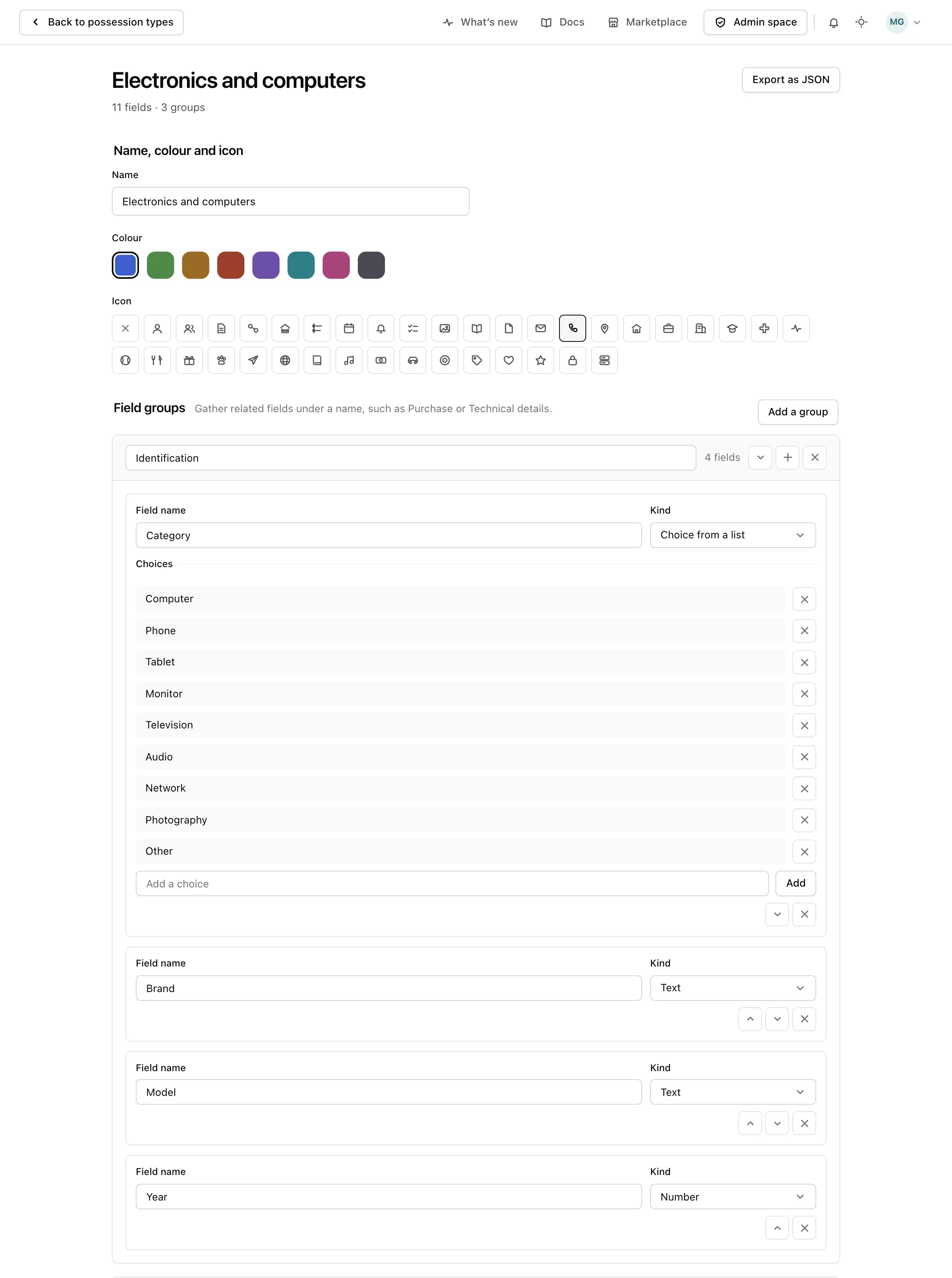
Every change is saved as soon as you leave a field. There is no button to press.
Group fields#
When a type has many fields, gather them under a name. Choose Add a group, name it Purchase, then use the plus button on the group to add Price and Shop inside it.
Move a group or a field with its up and down buttons. A field moves among the fields of its own group, or among the standalone fields.
Removing a group keeps its fields. They become standalone fields, after the ones already there.
Kinds of field#
| Kind | Holds |
|---|---|
| Text | A few words, such as a serial number |
| Number | A quantity, such as a power rating |
| Date | A day, such as the end of a warranty |
| Yes or no | One of two answers |
| Choice from a list | One of the choices you wrote |
| Rating from one to five | A score |
Share or back up a type#
Choose Export as JSON on a type to see its file. Copy it or download it. The file holds the name, the colour, the icon, the groups and the fields, and nothing you wrote about a thing you own.
To bring a file in, choose Import JSON on the list of types, paste the file and choose Check this file. Monica lists every problem it finds before anything is created. A file that can be imported arrives as a new type, and the types you already have stay as they are.
Delete a type#
At the bottom of a type, choose Delete this type. Its groups and fields go with it, and so does every possession of that type, with the details it held. This cannot be undone.