
Change a vault’s name, colour and default template
Each vault has its own settings: what it is called, its colour, and the template new contacts in it start from.
To open them, go to the vault and choose Vault settings in its sidebar.
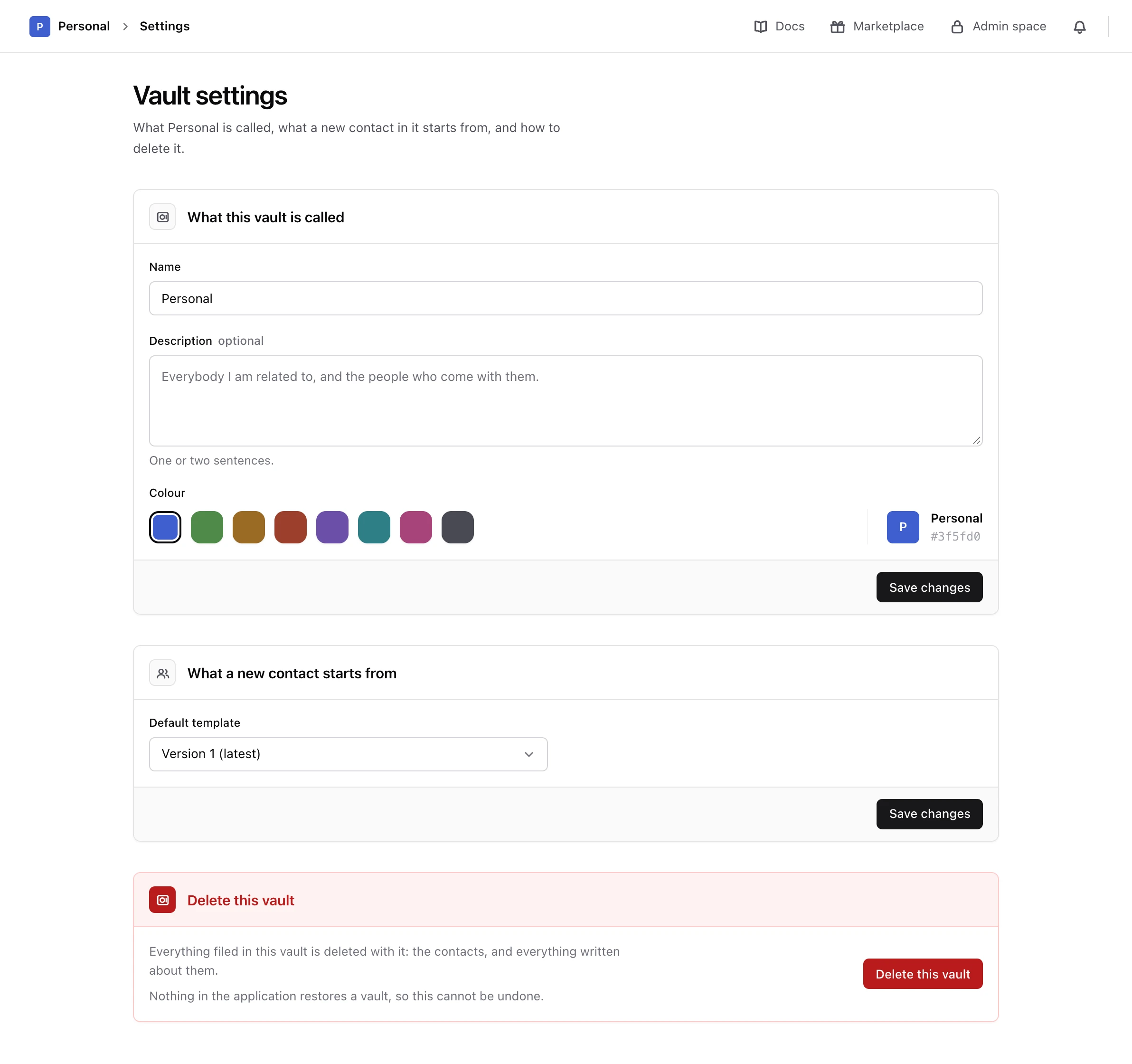
Rename it or change its colour#
-
Change the details
In What this vault is called, change the Name, the Description or the Colour.
-
Save
Choose Save changes under that panel.
Monica says The vault is saved. The new name and colour appear in the vault switcher and on Your vaults straight away. Nothing inside the vault changes.
Choose what a new contact starts from#
A template decides which tabs, sections and fields a contact’s page holds. Each vault has one default template for new contacts, and Add somebody uses it unless you pick another on the form. How Monica is organised explains templates.
-
Pick the template
In What a new contact starts from, open Default template. The list groups the published versions of each of your contact templates, and marks the newest one (latest).
-
Save
Choose Save changes under that panel.
Monica says The template is saved. Only contacts you add from now on start from it: contacts already in the vault keep the template they were written on. To move one of them to another version, see Change what you know about somebody.
Only published versions appear in the list. A draft you are still working on is not offered until you publish it.
If you delete a template that a vault uses as its default, the vault is left without one. The form for a new contact then says This vault has no template for new contacts to start from until you pick another default here.
Next steps#
- Delete a vault you no longer need.
- Add a person with the new default.