
Change what you know about somebody
Fill in a section of a contact’s page, add a second phone number, or correct a name.
Say Chandler Bing has a new work phone, and you want to keep it next to his mobile. You open his page, edit one section, and save it.
How a contact’s page is arranged#
A contact’s page is divided into tabs, shown under their name:
- Overview is always first. It shows their timeline, their immediate family and their reminders.
- The tabs in the middle come from the contact’s template. With Basic contact, the template Monica starts you with, they are General, Ways to connect and Information.
- Relationships is always last. It lists how the contact is connected to other people.
Each template tab holds sections, such as Contact information or Addresses, and each section holds fields. The number next to a tab counts the entries written on it. How Monica is organised explains templates, and why two contacts can show different tabs.
Edit a section#
You edit one section at a time. Saving writes that section only, so the rest of the page stays exactly as it was.
-
Open the tab
On Chandler’s page, choose Ways to connect.
-
Edit the section
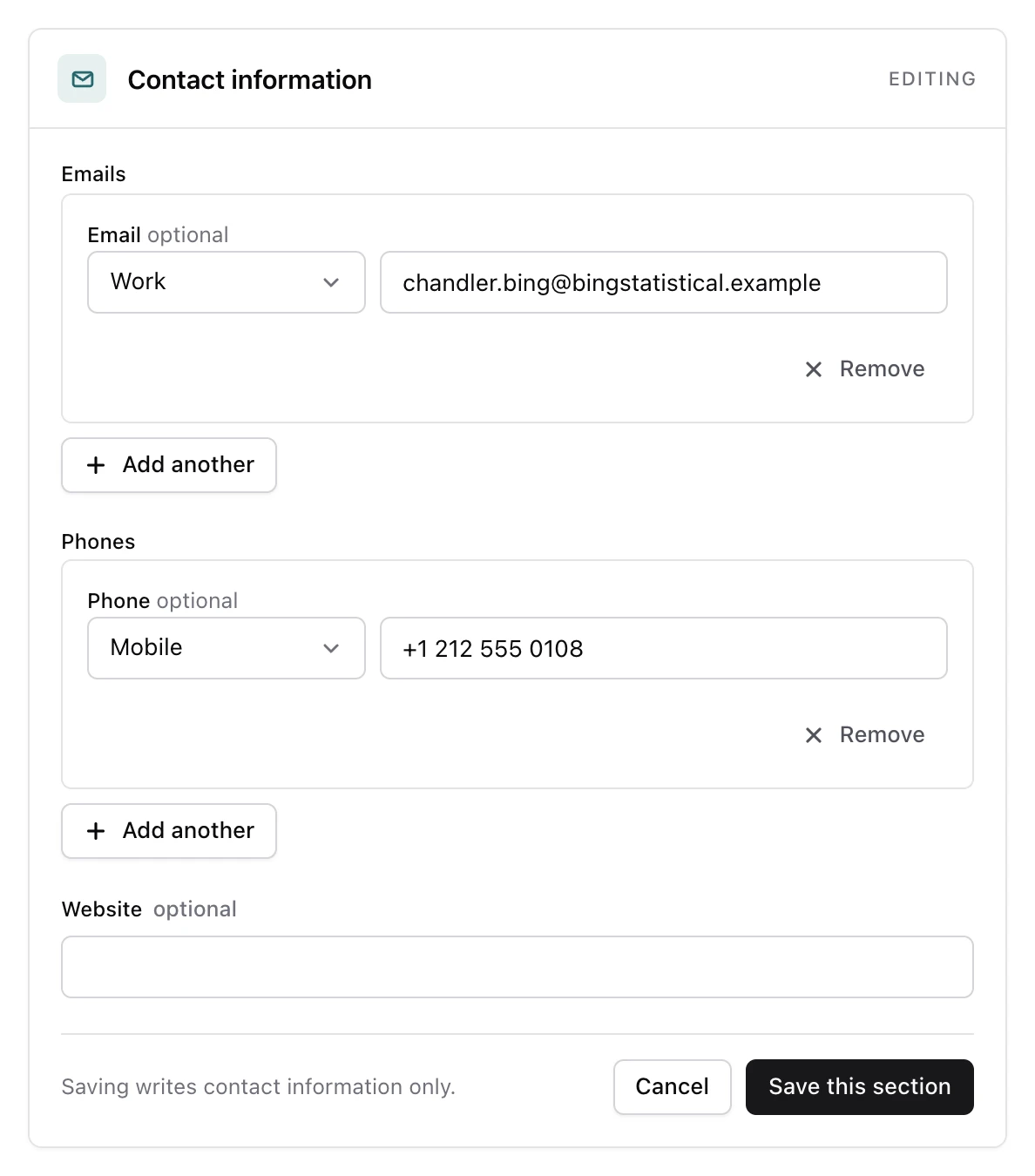
In Contact information, choose Edit. The section switches to edit mode and shows Editing in its corner.
-
Add the second phone number
Under Phones, choose Add another. Choose Work in the list next to the new line, then type the number.
-
Save the section
Choose Save this section.
Monica says Saved, and Contact information now lists both numbers. To leave edit mode without saving, choose Cancel.
Lists of values#
Some fields hold several values, like Emails and Phones. Each value has its own line, and most have a label saying what it is for, such as Home, Work or Mobile.
- Choose Add another to add an empty line.
- Choose Remove on a line to take it out. Monica says This one goes when you save the section, and Keep it brings the line back if you change your mind.
A field can set its own limits, for example a smallest or largest number of lines. When you go past one, Monica says so and saves nothing.
When a section refuses to save#
Monica keeps what you typed and names the field that needs attention:
- … has to be filled in. The template marks this field as required. Fill it in, or choose Cancel.
- Another record in this vault already holds this …. The field must be unique in the vault, and another contact already has this value. Check whether you are editing the right person, or look for a duplicate.
Change the name#
The name is not part of any section, because every contact has one whatever their template.
-
Open Edit contact
On the contact’s page, choose Edit contact.
-
Correct the name
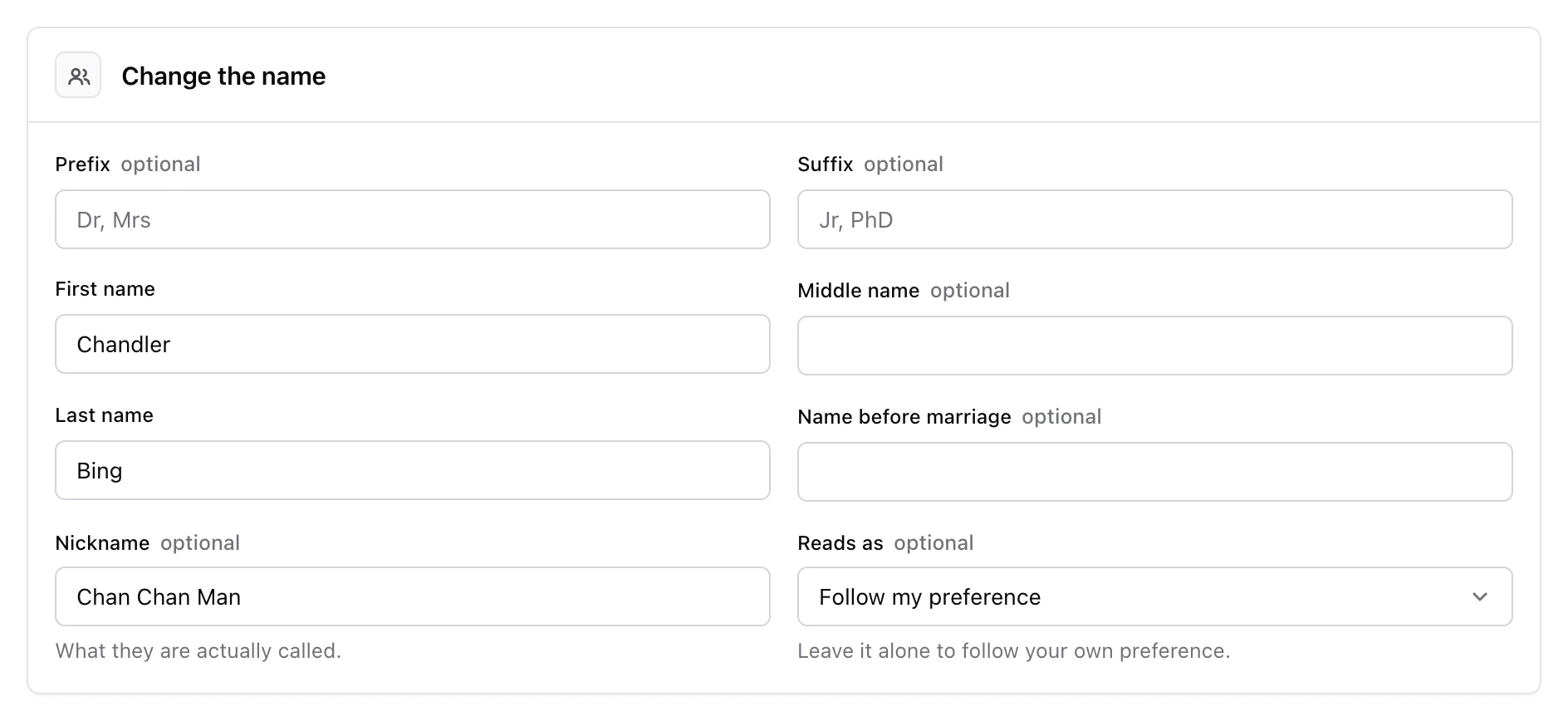
Under Change the name, correct any part of it: First name, Last name, Nickname, and the rest. Reads as decides whether the given name or the family name comes first.
-
Save the name
Choose Save the name.
Monica says Saved, then They are called Chandler Bing now, with the new name.
The address of a contact’s page is built from their name, so it changes with the name. A bookmark to the old address stops working. Open the contact from People and bookmark the new address instead.
Answers to questions no longer asked#
A template can change. If a field disappears from the version of the template a contact uses, what you wrote in it is not deleted. Monica hides it, and keeps it.
To see these answers, open the menu next to Edit contact, choose Version history, then Unused answers. The screen, Answers to questions no longer asked, lists each hidden answer and when it stopped being used. Put the field back on the template, and the answers come back on the contact’s page on their own.
When a new version of the template is ready#
When the template a contact uses has a newer version, their page shows Version 2 of the Basic contact template is ready, with the numbers and name of your own template. Nothing changes on the page until you choose Apply version 2. Applying it changes which sections and fields the contact shows, and everything already written down stays.
Next steps#
- Add a photo to the contact.
- Find people in a vault once your list grows.