
Change a template
Add, move, rename or remove the pages, sections and fields of a template, then publish the result as a new version. Contacts already on the template keep what they show until you move them, as Why templates have versions explains.
Open your settings, choose Templates, then Open on the template, or Continue the draft if a draft is already under way.
Start a draft#
A published version cannot be changed. The builder says This version is published, so it cannot be changed, and its controls are unavailable.
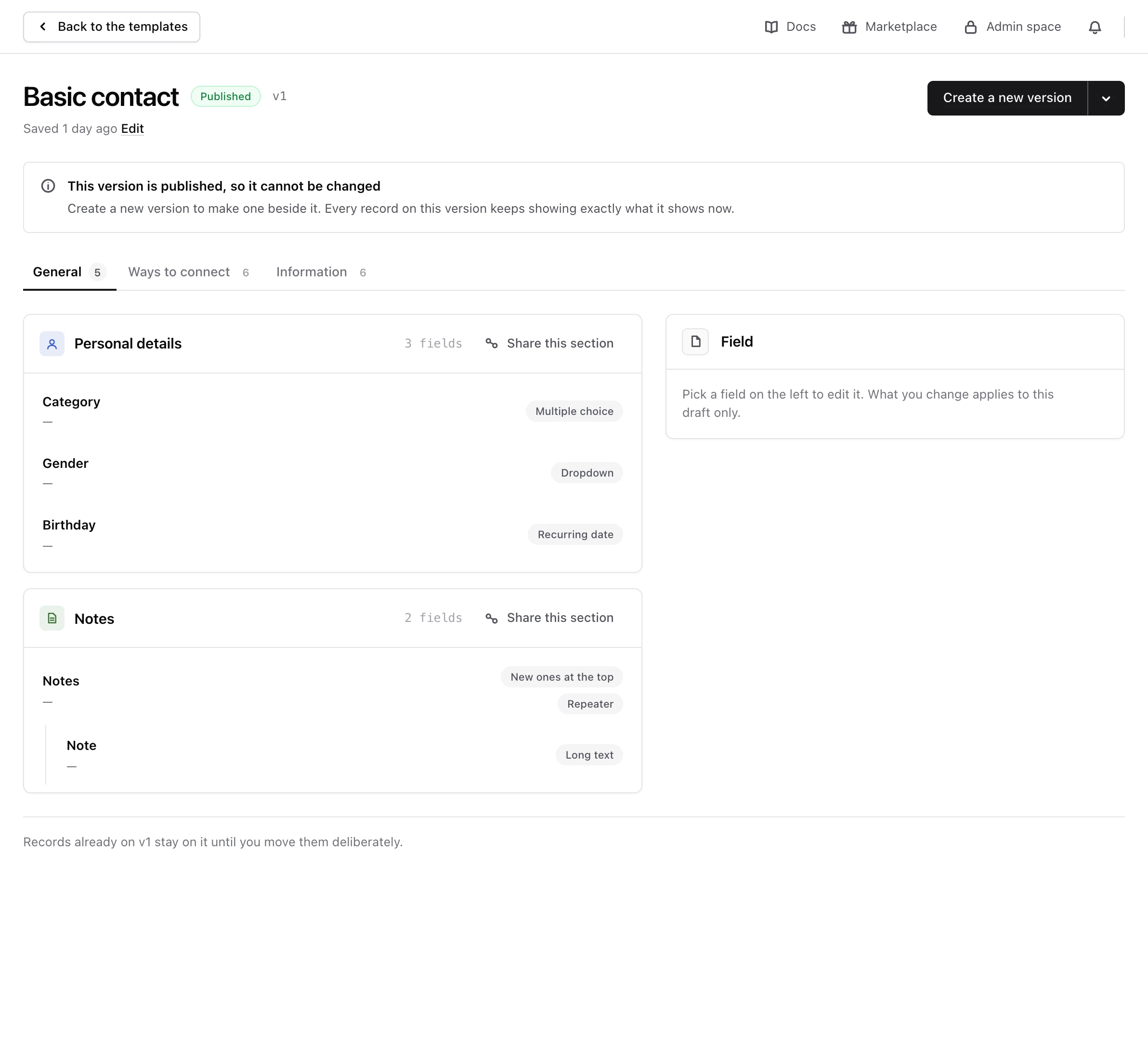
Choose Create a new version. Monica says A draft is started and copies the published version into it. The published version is unchanged, and every contact on it works as before. A template has at most one draft: if one exists, Continue the draft opens it.
To abandon a draft, choose Delete the draft, then Delete it. What was published is unchanged.
Pages#
A page is a tab on the contact’s page.
- Add a page and give it a name of a word or two, such as
Work. - In This page, choose Rename, Reorder to move tabs left and right, or Remove.
A page can be removed only when it holds no section, and a template always keeps at least one page.
Sections#
- Add a section to General, with the name of the tab you are on, adds a section. Pick its mark, give it a name, and choose Add it.
- Rename changes its heading on this template.
- Move to puts it on another page.
- Drag it by its handle to change its place on the page.
- Remove takes it off this template. The section itself is untouched, and every other template carrying it is unchanged.
A section can be carried by more than one template. When you change a field in a shared or published section, Monica gives the section a new version, and the other templates stay exactly as they are.
Fields#
- Add a field opens a page asking What is it called? and And what kind of thing is it? Type a Label, pick a type, and choose Add the field. A type that offers choices also asks which value list the choices come from, as Change the choices a list offers explains.
- Choose a field to open its settings: its Label, Help text and Placeholder, and whether it is Required, Sensitive or Highlighted. Choose Save the field.
- Drag a field by its handle to move it within its section.
- To delete a field, open it and choose Delete the field, then confirm. It is removed from the draft only. The published version keeps it.
A field’s type is fixed once added. To change it, remove the field and add the one you want.
Fields inside a repeated block
A Repeater holds fields that are asked again for every entry, like the person and the role of each of a pet’s caregivers. Open the repeater and choose Add a field inside. A repeater cannot sit inside another repeater.
Sensitive and highlighted fields
- Sensitive hides the value on screen until you reveal it, and leaves it out of a sharing link unless you include sensitive fields. It is not a lock: anybody signed in to your account can reveal it.
- Highlighted shows the value in the header of the contact’s page, as well as in its section.
Monica also uses some fields to spot duplicates, such as the email and phone fields of Basic contact. This setting cannot be changed from the builder today.
Publish the draft#
Choose Publish this version. Monica says the version is published, and it cannot be changed from then on.
Note
When a template has several pages, every page must hold at least one section before you publish. Remove an empty page, or add a section to it, first.
Publishing changes no contact. To move contacts onto the new version, see Move a contact to a new template version. To have new contacts start from it, choose it as the default template in the vault settings.
What a template describes#
When you create a template, What it describes says whether it is for contacts or for one kind of record you created, such as Animals. It decides where the template is offered: a template for contacts appears only when somebody adds a contact, and a template for animals only when somebody adds an animal.
This choice cannot be changed later, because every record made with the template would then show fields meant for something else. If you picked the wrong one, create another template, and delete this one while nothing uses it.
Rename a template or delete it#
On the template, choose Edit to change its Name and Description. Its slug, the short name in its address, never changes, so old links keep working.
To delete a template, choose Delete the template on the same screen, then confirm. Monica refuses while any contact still uses one of its versions, and says The template still renders records and stays. Move those contacts to another template first. A deleted template’s slug stays taken, so an old link can never reach something else.
Your last template for contacts cannot be deleted, because a new vault starts your own contact from it. The screen says so in place of the button. When you delete a template a vault starts its new records from, that vault moves to Basic contact, or to the next template Monica supplied when Basic contact is gone, then to one of your own.
The screens mention turning a template off instead of deleting it. There is no control for that on the web yet.
Supplied templates#
The templates Monica supplies, such as Basic contact, Basic animal and Animal, are listed under Supplied with Monica. They work as they are, and the list suggests copying one before you change it. Follow Build your own contact template to make a copy of your own.