
Move a contact to a new template version
When a template has a newer version, the contacts already on it stay where they are until you move them. Move a contact when you want their page to show the new sections and fields, and leave them when you do not. Why templates have versions explains why.
Apply the new version#
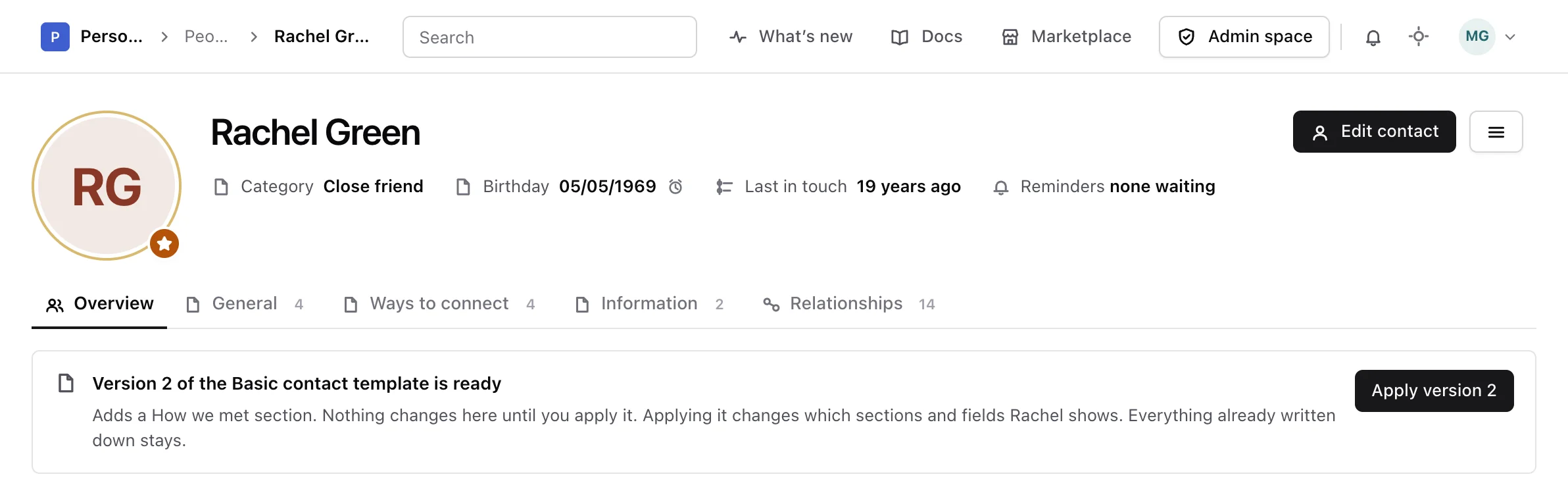
When a newer version of a contact’s template is published, their page says Version 2 of the Friends template is ready, with the number and the name of your template, and the note written when it was published.
-
Read the banner
Open the contact’s page. The banner explains that nothing changes until you apply the new version, and that everything already written down stays.
-
Apply it
Choose Apply version 2.
Monica says Rachel Green is on version 2 now, and that nothing written down was touched. The page now shows the sections and fields of version 2.
To leave a contact on their version, do nothing. The banner stays until you apply the new version.
Each contact moves on their own. There is no way to move every contact of a template at once from the web.
What happens to what you wrote#
- Before the move, Monica takes a snapshot of the contact, so you can go back.
- Answers to fields version 2 still has stay exactly where they are.
- Answers to fields version 2 no longer has are set aside, not deleted. They wait under Answers to questions no longer asked, and come back on their own if a later version has the field again. Reminders built from such a date stop, and start again when the field comes back.
Go back to an earlier version#
-
Open the contact’s version history
On the contact’s page, open the menu next to Edit contact and choose Version history. It lists each version the contact has used, marks the one in use Current, and says how long each was in use.
-
Revert
On the earlier version, choose Revert. Monica asks Revert to version 1?, and explains that answers in fields that version does not have are hidden, not deleted.
-
Confirm
Choose Revert to go back, or Stay on version 2 to keep the current one.
You can revert only to a published version of the same template. The move is recorded in the version history, like any other.
Under the history, a line says how many values written under other versions are hidden, with a link to Unused answers.
Next steps#
- Change the template again.
- Change what you know about the contact on their new version.