
Say what state your things are in
A possession condition says what state a thing is in: New, Used, Broken. A type says what a thing is, a location says where it is, a tag says what you want to remember about it, and a condition says how it has held up. Conditions belong to your account, so every vault uses the same list.
Open your settings, and under Possessions choose Possession conditions.
Your account starts with six, from best to worst: New, Like new, Used, Worn, Damaged and Broken. They are written in the language you used when you created your account, and you can change, move or delete any of them.
Giving a possession its condition comes in a later release. For now you prepare the list.
Add a condition#
-
Name it
Under Add a condition, type
Mintin Name. A condition holds up to 50 characters.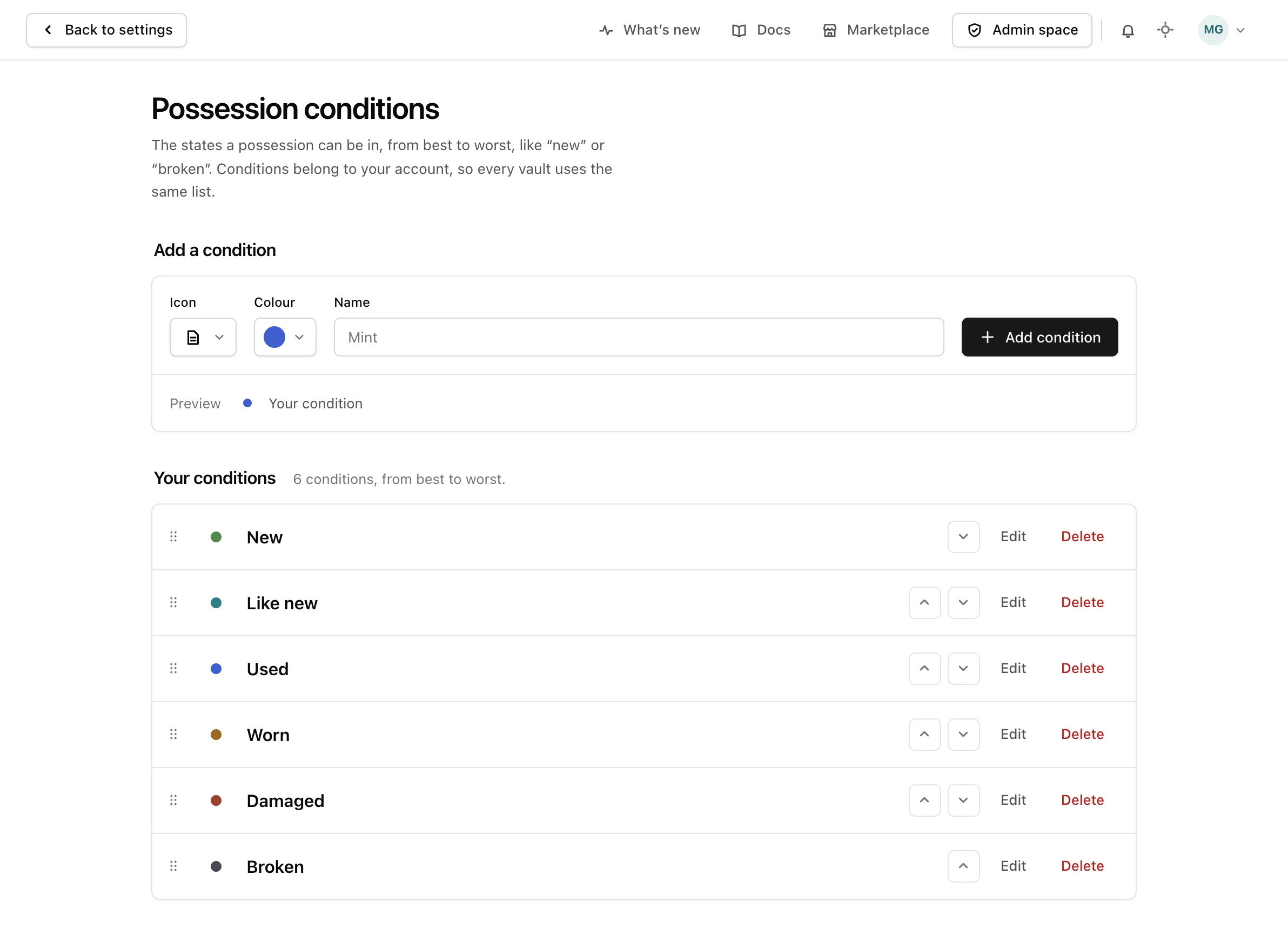
-
Pick its icon and colour
Choose Icon to pick a glyph, or No icon to go without one. Choose Colour to pick one of the eight colours. The preview below shows the condition as it will look.
-
Add it
Choose Add condition, or press Enter. The condition joins the end of the list under Your conditions.
Two conditions cannot share a name, even written in different capitals: with Used in the list, used is refused.
Put them in order#
The list reads from best to worst, and the order is yours. Drag a condition by its handle to another place, or use its Move up and Move down buttons, which also work from the keyboard. After a move, the focus stays on the condition you moved.
Change or delete a condition#
Choose Edit on a condition to rename it, or to change its icon or its colour, then Save changes. Cancel, or the Escape key, leaves it as it was. The condition keeps its place in the list.
Choose Delete on a condition, and confirm. The deletion cannot be undone, and the conditions after it move up to close the gap. If you delete all six, they are not added back.
From the API or an assistant#
Everything on this screen can also be done through the API reference and by an assistant connected as the MCP guide explains.