
Sign in with your password
Sign in with the email address and password you chose when you created your account.
-
Open the sign in screen
Go to your Monica, such as monicahq.com. The screen Welcome back opens.
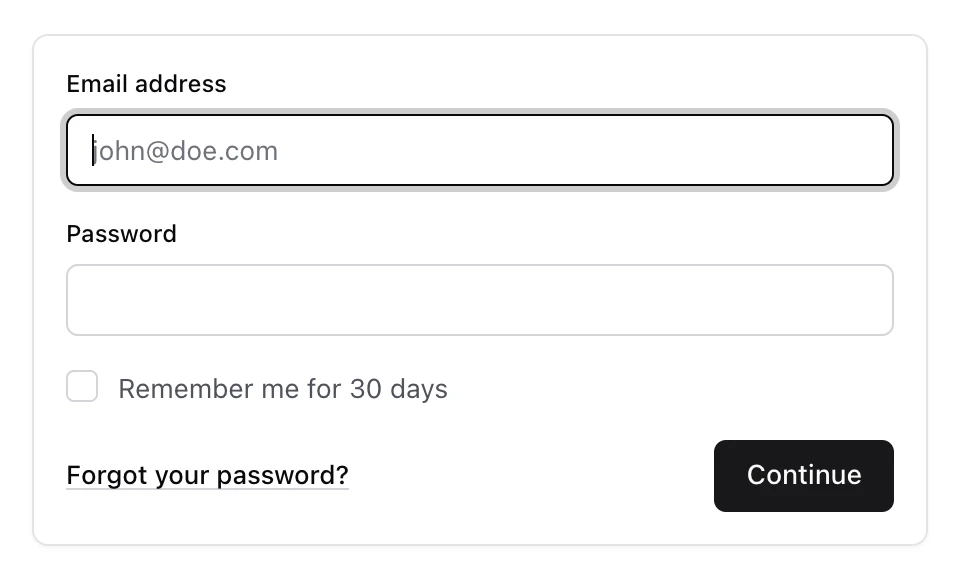
-
Enter your details
Type your Email address and your Password.
-
Choose whether to stay signed in
Tick Remember me for 30 days on a computer only you use. The screen shows the number of days your Monica keeps you signed in. Leave it unticked on a shared or public computer.
-
Continue
Choose Continue. If you turned on two factor authentication, Monica asks for a code next, as Turn on two factor authentication explains.
When Monica refuses#
Monica says These credentials do not match our records. It says the same thing whether the address is unknown, the password is wrong, or the account cannot be used. This is deliberate: a different message would tell a stranger which addresses have an account.
Each time somebody gets the password wrong on an existing account, Monica emails its owner with the subject Failed sign-in attempt on your Monica account. If that was you, you can ignore it. If not, see An email says somebody signed in.
After five failed attempts from the same place for the same address, Monica stops accepting tries for a moment and says Too many sign-in attempts. Please try again in … seconds. Wait, then try again.
Other ways in#
- Sign in with a link sent by email if you would rather not type a password.
- Sign in with a passkey if you added one.
- Choose a new password when you forgot it if you no longer remember it.