
Build your own contact template
Make a template of your own for your friends, with a How we met section, publish it, and add somebody with it.
Basic contact, the template Monica starts you with, covers what most people want to keep. In this tutorial you copy it, add a section for how you met each friend, with a line of text and a date, and use it for Mike Hannigan.
What you will learn#
How a template is copied, changed as a draft, published, and then used for a new contact. Why templates have versions explains why templates work in versions, and is worth reading first.
Before you start#
You need nothing but your account. Nothing in this tutorial changes a contact you already have.
Step 1: Copy Basic contact and name it#
You work on a copy, so Basic contact and every contact that uses it stay as they are. You name the copy before it is made, because its slug, the short name in the address, cannot be changed afterwards.
-
Open your templates
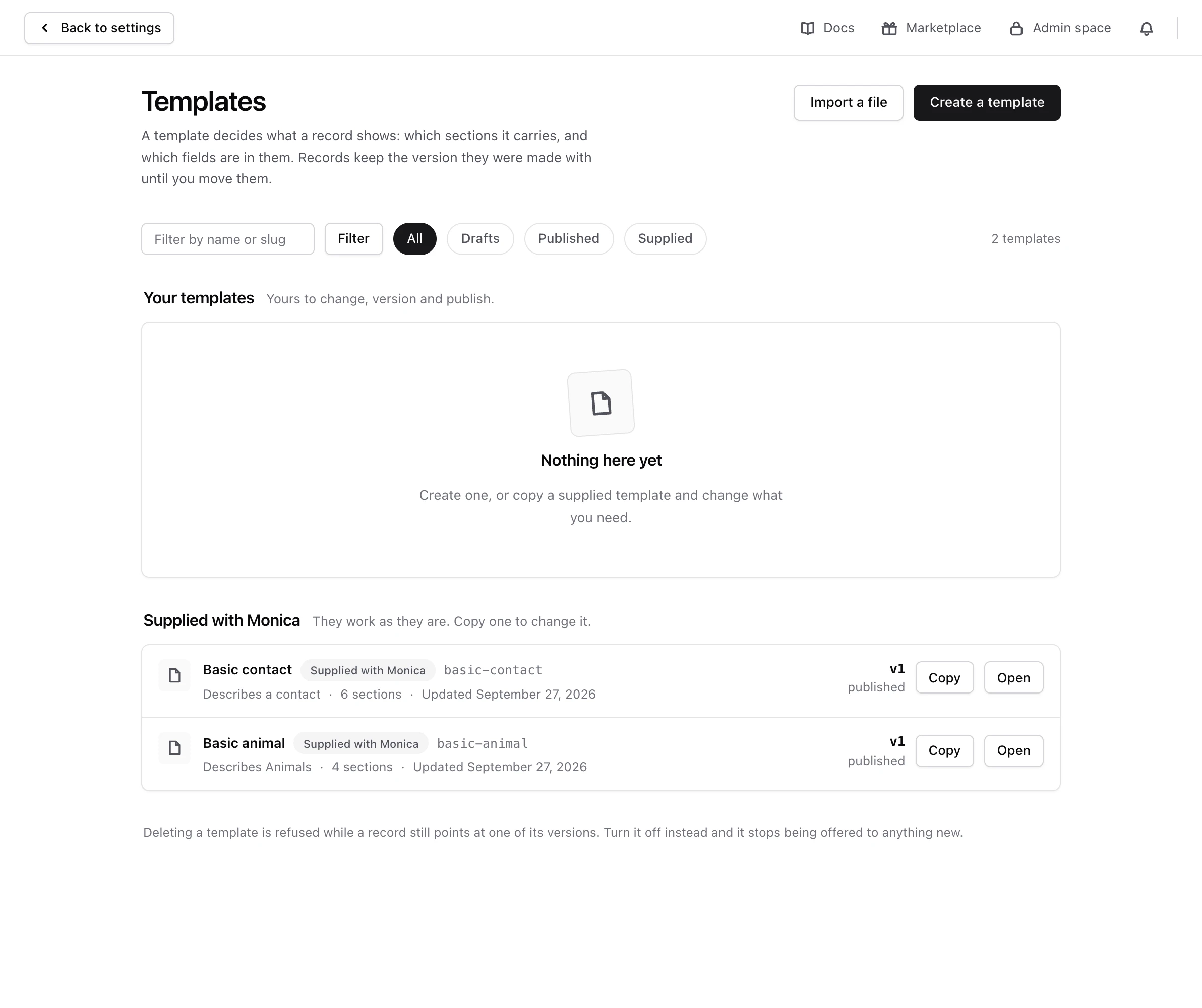
Open your settings, and under Personalisation choose Templates. Basic contact is listed under Supplied with Monica.
-
Copy it
On Basic contact, choose Copy.
-
Name the copy
In Name, replace Copy of Basic contact with
Friends. The Slug follows as you type and becomesfriends. Choose Make the copy.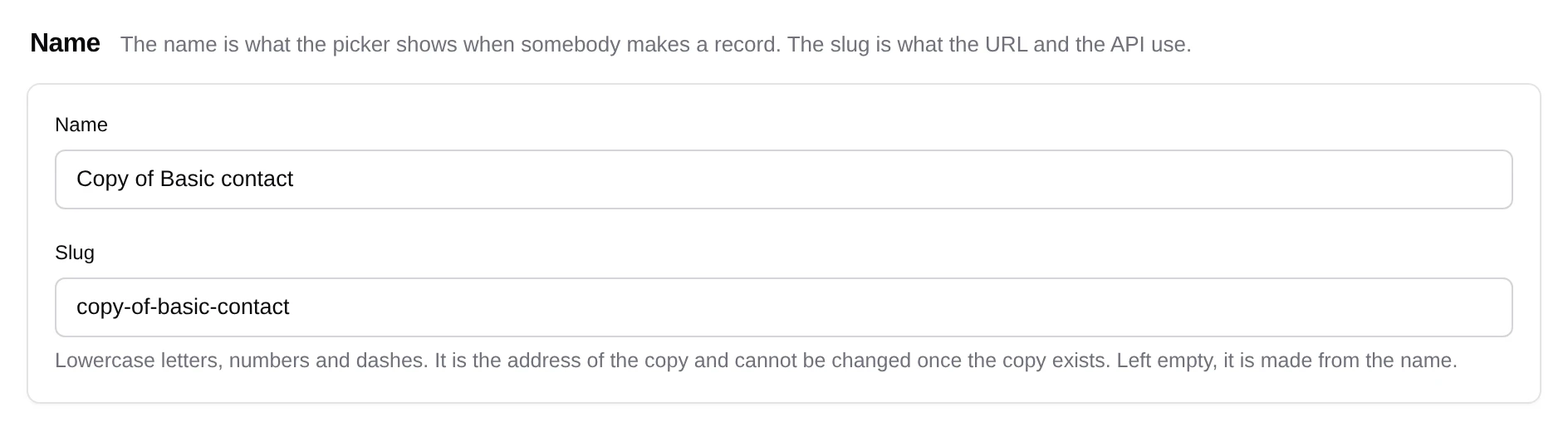
Check your work. Monica says The template is copied and opens the builder of Friends, marked Draft, with friends in the address. The copy is listed under Your templates.
Step 2: Add the How we met section#
-
Open the General tab
In the builder, choose the General tab.
-
Add a section
Choose Add a section to General. Pick a mark for it, type
How we metin Name of the section, then choose Add it. -
Add a line of text
In How we met, choose Add a field. Type
Wherein Label, choose Short text, then choose Add the field. -
Add a date
Choose Add a field again. Type
Whenin Label, choose Date, then choose Add the field.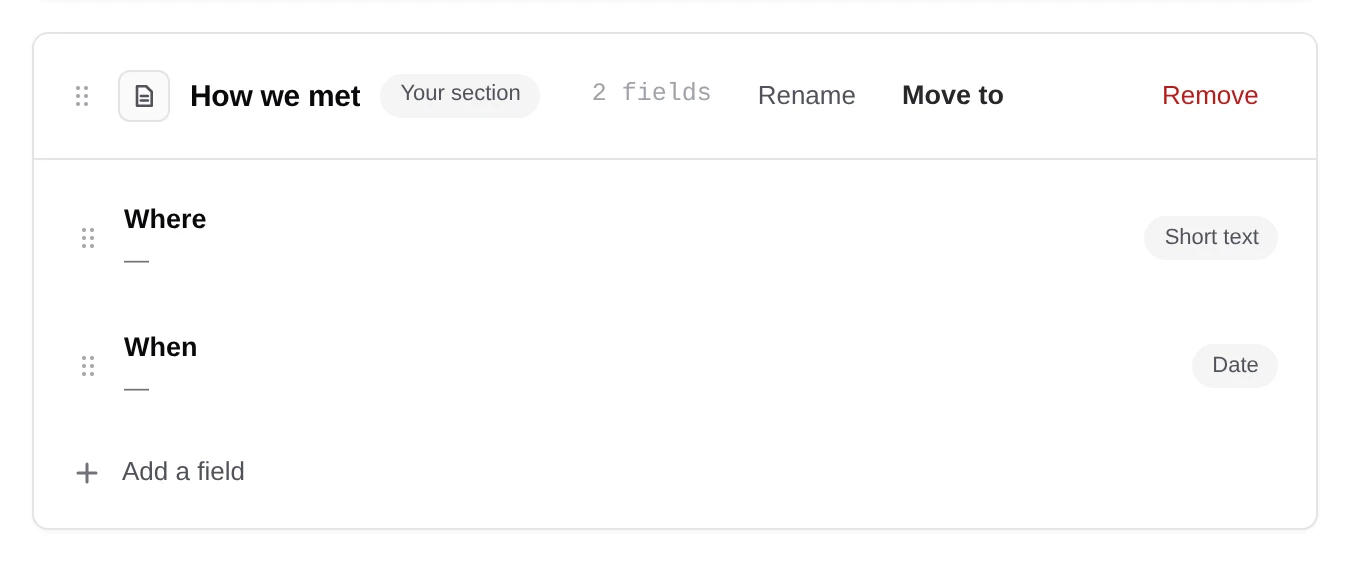
Check your work. How we met sits on the General tab of the draft, with its two fields. Choose a field to see its settings in the panel beside it, such as Required or Sensitive.
Step 3: Publish it#
A draft is invisible to your contacts. Publishing makes it a version they can use.
-
Publish
Choose Publish this version.
Check your work. Monica says Version 1 is published. The builder now says This version is published, so it cannot be changed: a later change starts a new version beside it.

Step 4: Add Mike with it#
-
Open the form for a new person
In your Personal vault, choose People, then Add somebody.
-
Choose the template
Under What this contact starts from, choose Friends in Template. The list appears because your account now has more than one contact template.
-
Enter the name
Type
Mikein First name andHanniganin Last name, then choose Create the contact.
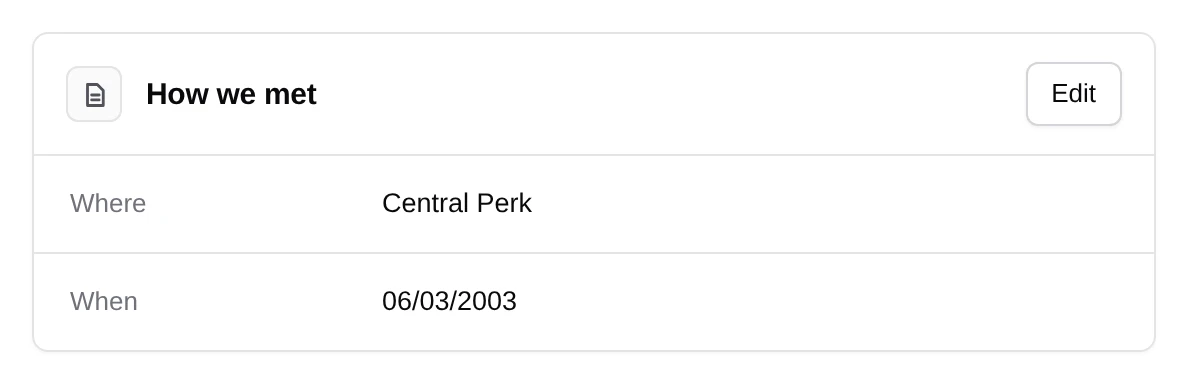
Check your work. Mike’s page opens. On the General tab, How we met is waiting for you to fill in. Choose Edit in it, write Central Perk and the date, and choose Save this section.
What you did#
You copied a template, changed it as a draft, published it, and gave a new contact its shape. Basic contact, and every contact on it, did not change.
If a step did not match what you see:
- No Template list on the new contact form. It appears only when you have more than one published contact template. Check that you published Friends in Step 3.
- Add a field is refused. The builder is showing a published version. Choose Create a new version to start a draft first.
Next steps#
- Change the template again: your next change becomes version 2.
- Move a contact to version 2 once you publish it.
- To use Friends for every new contact in a vault, choose it as the default template in the vault settings.