
Sign in with a link sent by email
Sign in without a password: Monica emails you a link, and opening it signs you in.
-
Ask for a link
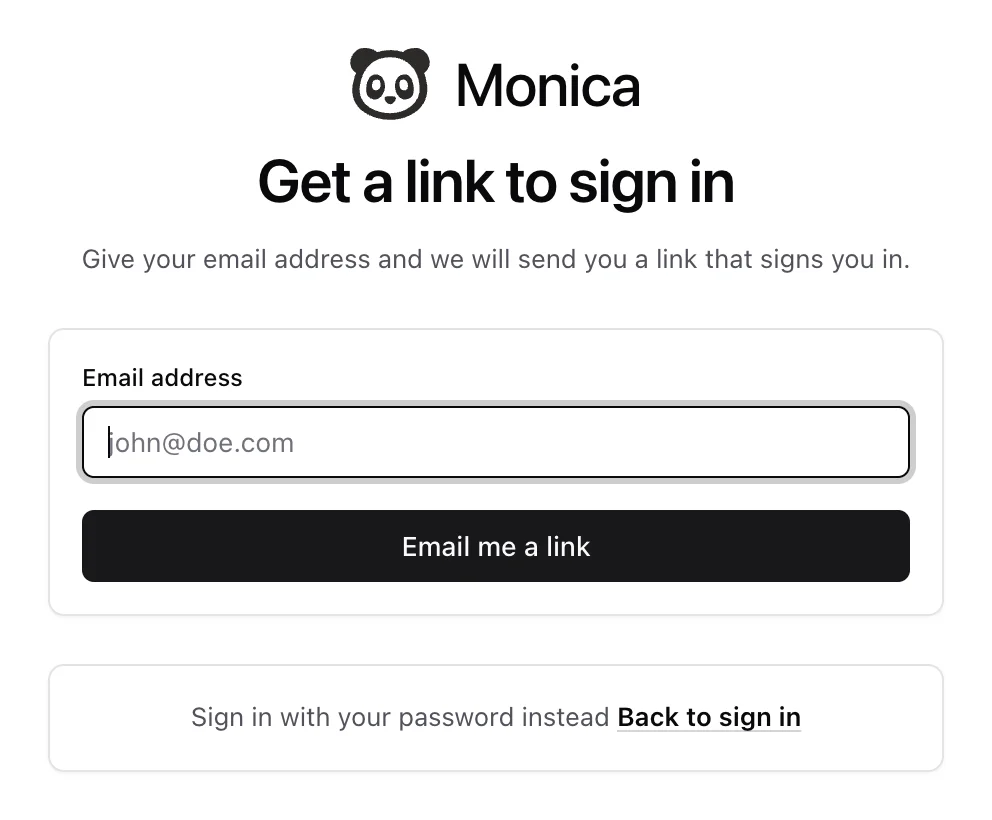
On the sign in screen, under Sign in without a password?, choose Send me a link instead. The screen Get a link to sign in opens.
-
Enter your address
Type your Email address, then choose Email me a link.
-
Open the email
Monica says Check your inbox. Open the email with the subject Your sign-in link for Monica, and choose Sign in to Monica.
You are signed in. If you turned on two factor authentication, Monica asks for a code first.
What to know about the link#
- It works once. After you use it, it stops working.
- It lasts a few minutes. Five by default. The email says how long yours lasts.
- It works on any device. You can ask for it on your computer and open it on your phone.
- The confirmation is the same for everybody. Check your inbox appears even when the address has no account, so nobody can use this screen to find out who is registered.
If the link has expired or was already used, Monica says That link no longer works. Ask for another one.
After you sign in this way, Monica emails you with the subject You signed in to Monica without a password, so you would notice if somebody else used a link from your mailbox.
Note
Whoever runs your Monica can switch sign in links off. The option then does not appear on the sign in screen.
Nothing arrived#
Wait a minute, and look in your spam folder. Then ask for another link.