
Organise Knowledge in folders
Folders group the notes and lists of Knowledge by theme. Chandler Bing keeps one for Apartment, one for Work and one for Trips. Folders sit side by side: a folder cannot hold another folder.
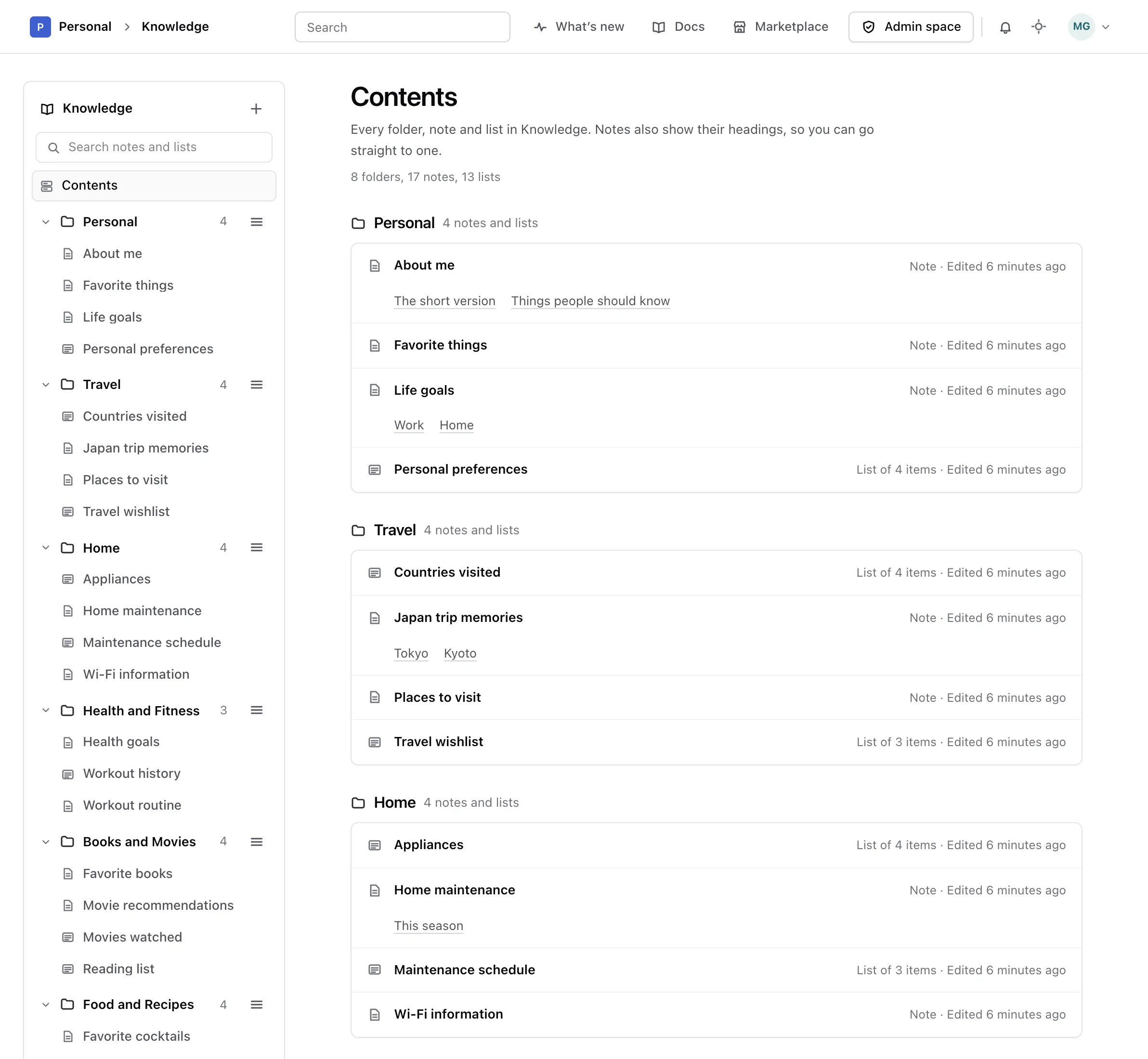
The column on the left of every Knowledge page lists your folders in the order you chose. Click a folder's name to fold or unfold it. The number beside it says how many notes and lists it holds.
Add a folder#
-
Open the menu
Click the + button at the top of the column, next to Knowledge.
-
Choose New folder
Choose New folder, type its name, then click Add the folder.
-
Find it at the end
The new folder goes after the others. Move it where you want it, as described below.
The same menu offers New note and New list. It tells you which folder they go to: the folder of the note or list you are reading, or your first folder otherwise.
Rename or reorder a folder#
Open the folder's menu with the button at the end of its row:
- Rename turns the name into a field. Type the new name and press Enter. Double clicking the name does the same, and Escape leaves the name as it was.
- Move above and Move below move the folder one place up or down.
To move a note or a list to another folder, edit it and choose the folder there.
Delete a folder#
Choose Delete folder in the folder's menu. If the folder holds notes or lists, Monica asks what happens to them under Its notes and lists: move them to another folder, or delete them too.
Warning
Choosing Delete them too deletes every note and list in the folder for good. Moving them keeps everything intact.
Knowledge always keeps at least one folder, so your last folder cannot be deleted. Its menu says so instead of offering the deletion.
Next, write a note in your folder.