
Add something you own
A possession is something you own, recorded in one vault: a car, a watch, the good camera. It is of one type, may be kept at a location, and may carry tags.
Open a vault and choose All possessions in the sidebar. While the vault holds nothing yet, the screen explains what a possession keeps. Choose Add your first possession, or pick one of your types under Or start from a type to open the form with that type already chosen. Once the vault holds something, choose Add a possession.
Find what you own#
Once the vault holds something, All possessions opens on All locations: how many possessions the vault holds, across how many locations, and what they are declared to be worth. The possessions you featured come first under Featured here, and everything else follows by name, with its type, where it is kept and its value. A possession you lent carries a Lent badge.
The column on the left lists your locations, each nested under the place it sits inside, with how many of this vault's possessions are kept there or anywhere inside it. Choose one to see only what it holds. The panel at the top gives its address, or the address it takes from the place around it, and a bar splitting its possessions between the places inside it. Possessions kept at the place itself are counted as No specific spot. Each location has its own address in the browser, so you can bookmark it or go back to it.
Values are added per currency and never converted, so a vault holding euros and dollars shows two totals. Manage beside the list opens your locations in the settings.
Open a possession#
Choose a possession in All possessions to open its page. The top of the page gives its type, where it is kept, its name, a star when it is featured, and its tags.
Overview shows its description, then under Details the fields of its type you filled in, in the groups the type defines. Fields left empty are not shown. Beside them, Current estimated value gives its latest valuation, where it comes from and how it moved from the one before, or its declared value while it has no valuation. A short list gives its type, where it is kept, its status, how and when you got it and who it came from (both read from its transactions), who insures it and for how much (read from its insurance), and how many you have when it is more than one.
Transactions records the money and ownership changing hands for it, Insurance records how it is insured, one record per policy period, Valuations records what it is worth over the years, Provenance records where it comes from and who has held it, Maintenance records the work done on it, one record per job, Loans records who has it when it leaves your hands without changing owner, and Locations records where it is kept now and everywhere it has been. The last section of the page, Documents, is listed but comes in a later release.
Edit opens the form you added the possession with, filled with what it holds: its name, its description, the fields of its type, where it is kept, its declared value, its tags and whether it is featured. Change what you need and choose Save changes. Its type cannot be changed. Emptying a field removes what it held.
Open the menu beside Edit to:
- Add to featured or Remove from featured. A possession you feature goes after the ones already featured.
- Record a valuation, which opens the form in Valuations.
- Delete this possession. You are asked first, and the possession goes with the values of its fields, its transactions, its insurance records, its maintenance records, its valuations and its provenance events. This cannot be undone.
Change its tags#
The tags under the name of a possession can be changed from its page.
- Add a tag opens a list of every tag of your account, each with the number of other possessions carrying it. Tick a tag to put it on the possession, and the list closes.
- Type to narrow the list. When no tag has the name you typed, Create makes it a new tag of your account and puts it on the possession. It takes the next colour of the palette, which you can change in Possession tags.
- The cross on a tag, or unticking it in the list, takes it off. You are asked first. The tag stays in your account for your other possessions.
Move through the list with the arrow keys, press Enter to tick or untick, and Escape to close it.
Name it and pick its type#
-
Name it
Type what it is in Name, such as
World’s Best Boss mug. The name and the type are the only things you have to fill in. -
Pick its type
Open Type and choose one. Type a few letters to narrow the list, move with the arrow keys and press Enter, or press Escape to close it. The types you used last in this vault are listed first, and offered again as quick choices under the picker.
-
Fill in its fields
The fields of the type appear under the picker, in the groups the type defines. They are all optional. Choosing another type replaces them.
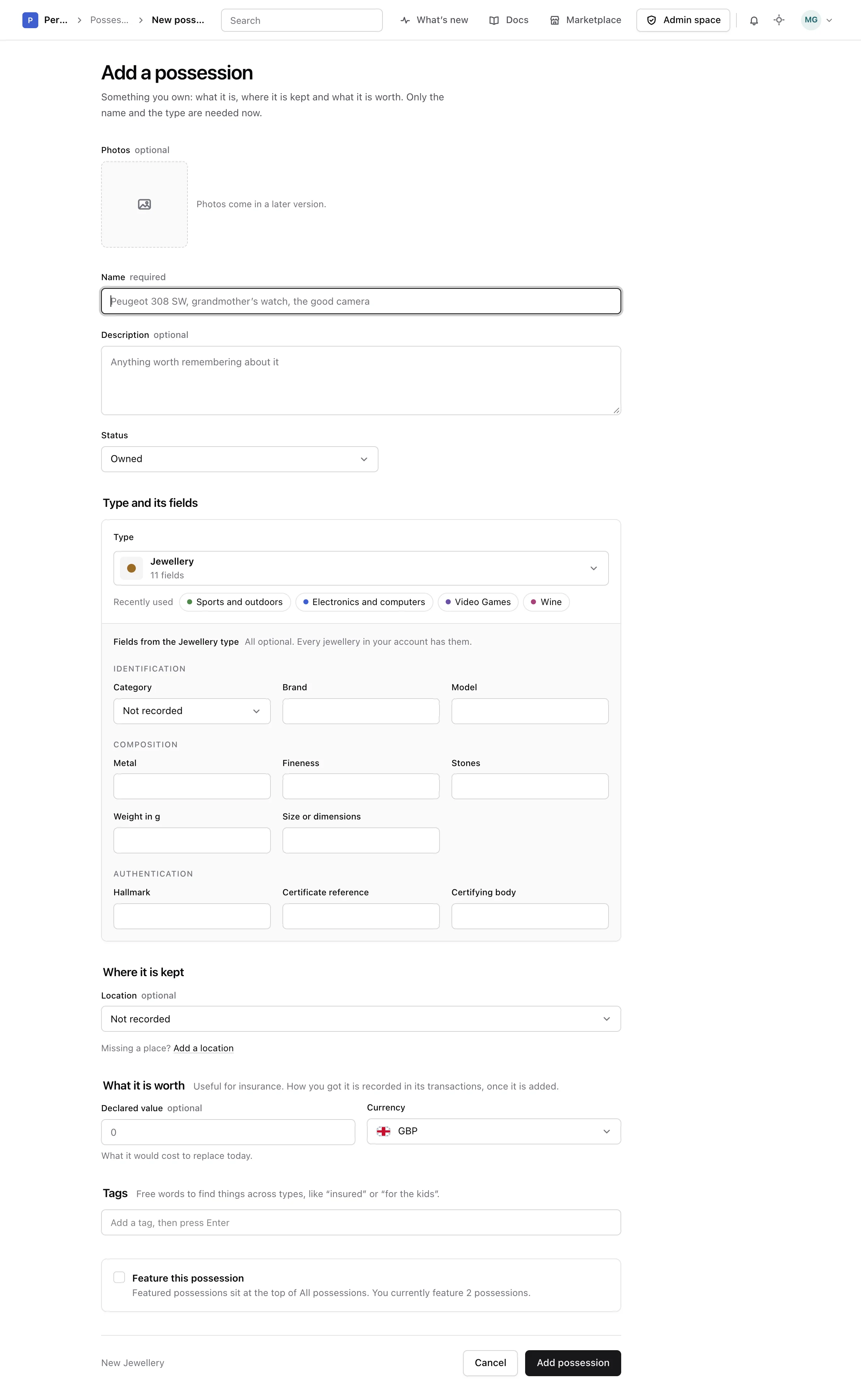
Say where it is kept#
Choose a place under Location. Each place is shown with the places it sits inside, such as Home › Living room. When the place or one around it has an address, the form shows it and says where it comes from. A place that is missing is added from Add a location. The place you choose opens the first stay of the possession, and changing it later on the edit form records a move.
Say what it is worth#
Under What it is worth, Declared value is what it would cost to replace today, in the currency you pick; the currency starts as the one of your language. Once the possession is added, what it is worth on a given day is better recorded as a valuation, which then takes the place of the declared value.
How you got it is not asked here. Once the possession is added, record the purchase, gift or inheritance as a transaction.
Tag it#
Type a tag and press Enter or a comma. A tag your account already has is reused, even written in different capitals, and suggested as you type. Any other word becomes a new tag of your account when you save. Backspace in the empty box removes the last tag.
Feature it#
Tick Feature this possession to place it at the top of All possessions, after the possessions already featured.
Photos come in a later release.
From the API or an assistant#
Everything on this screen can also be done through the API reference and by an assistant connected as the MCP guide explains.