
Create your account
Sign up, confirm your email address, and open the vault Monica prepares for you.
An account holds one person: you. Nobody else joins it, and everything you record in it is yours alone. If somebody else wants to use Monica, they create an account of their own.
Before you start#
You need an email address you can open now. Monica sends a link to it, and you use your account only once you have followed that link.
Go to monicahq.com, or to the address of the instance you use if somebody runs Monica for you.
Choose how you will sign in#
Monica offers two ways to sign in, and the form starts with the first one.
- A passkey. Your device unlocks it with your fingerprint, your face or your device PIN. There is nothing to remember and nothing to type. A passkey needs a secure connection: if the form says Passkeys need a secure connection, the address does not start with
https, and the account is created with a password instead. - A password. At least 8 characters.
You can add the other way later, from Settings, under Security and access.
Fill in the form#
-
Open the form
On the sign in screen, under New to Monica?, choose Create an account.
-
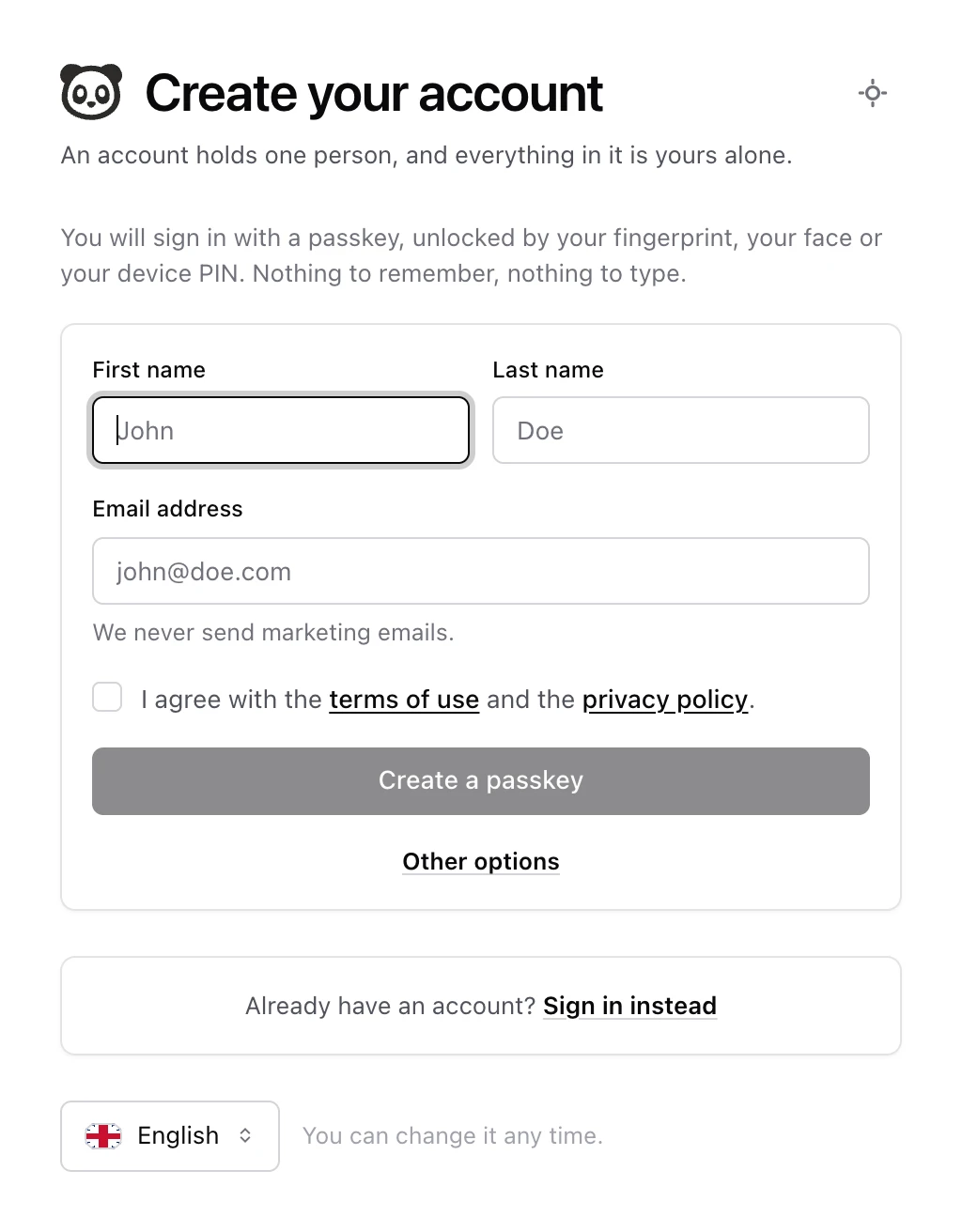
Enter your name and email address
Fill in First name, Last name and Email address. Monica refuses addresses from disposable email services, because it needs to reach you later.
-
Choose a password, if you want one
To use a password rather than a passkey, choose Other options, then fill in Password and Confirm password. To go back to a passkey, choose Use a passkey instead.
-
Agree to the terms
Tick the box that says you agree with the terms of use and the privacy policy. The button below stays unavailable until you do.
-
Create the account
Choose Create a passkey, or Next step: validate your email address if you chose a password.
Some instances also ask you to complete a short check that you are a person before the button works.
Create your passkey#
If you chose a passkey, the next screen says One last thing and your name. Choose Create a passkey, and let your device ask for your fingerprint, your face or your PIN. When it says the passkey is created, choose Continue.
Note
If you dismiss your device’s prompt, your account still exists, but only a sign in link sent by email reaches it. Choose Create a passkey again, or Set a password instead.
Confirm your email address#
Monica now shows Confirm your email address, and sends you an email with the same subject.
-
Open the email
Open the email from Monica. If nothing arrived after a minute, look in your spam folder, then choose Send the email again if it is not there either.
-
Follow the link
Choose Confirm my email address in the email. The link works for an hour, from any browser and on any device.
-
Check the confirmation
Monica opens and says Your email address is confirmed.
Until you confirm the address, Monica shows the confirmation screen instead of your account. If the link stopped working, sign in and choose Send the email again for a new one.
Read the welcome letter#
The first time you come in, Monica shows a short letter from us. Read it, then choose Let me in. It appears only once.
Open your Personal vault#
You arrive on Your vaults. Monica has already created one vault for you, named Personal. A vault is a compartment for one part of your life, and every person you record lives in one. How Monica is organised explains vaults in more detail.
Open Personal. Its dashboard is empty for now, which is expected: nobody is in it yet.
Note
Right after you sign up, Monica prepares your templates and lists in the background. If, in the first minute, the form for a new person says the vault has no template for new contacts to start from, wait a moment and open it again.
Sign up with another service#
If the sign in screen offers Continue with GitHub, Google, Apple, Microsoft, Facebook or another service, you can use that account instead of the form. The first time, Monica creates your account from the name and email address the service shares, then asks you to confirm the address as above. These buttons appear only when the instance offers them.
Next step#
Your account is ready. Now record your first person.